What a share link is
A share link opens one chat for anyone who has the address. They see the same screen you do — the conversation, the task steps, and the artifacts panel with every report, figure, table and deck the chat produced — but read-only: they can't send messages, edit artifacts, rewind or delete anything. Viewers don't need a Neutropic account.
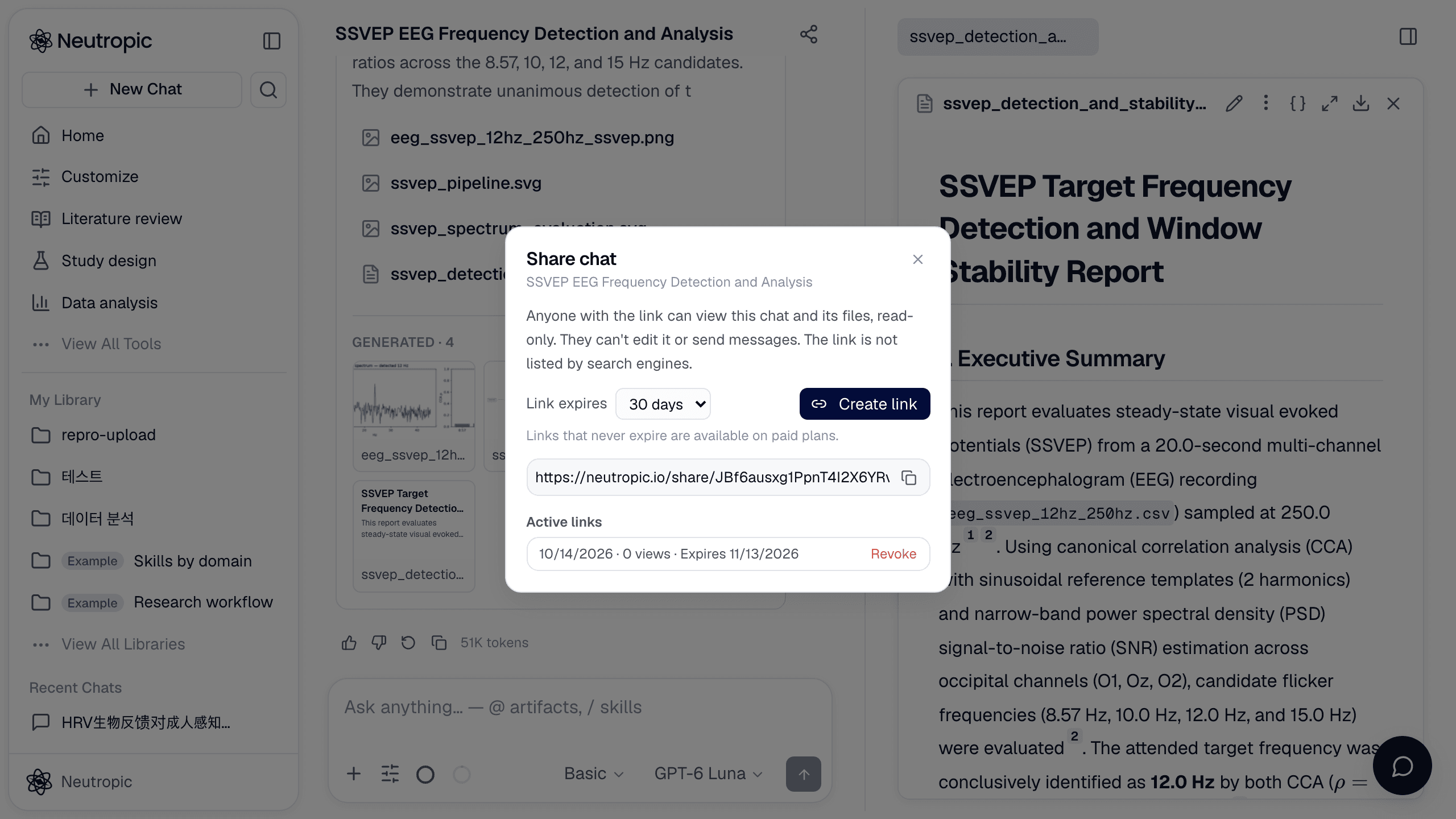
Create a link
Open the chat and click the Share icon in the chat header, next to the title. You can also choose Share from the chat's ⋮ menu in the sidebar, or on a phone from the ⋯ menu at the top of the chat. Pick when the link should expire, click Create link, and copy the address.
- 7 days and 30 days are available on every plan.
- Never — a link that stays valid until you revoke it — is available on paid plans.
Only the chat's owner can share it. Chats in the example projects can't be shared.
What viewers see
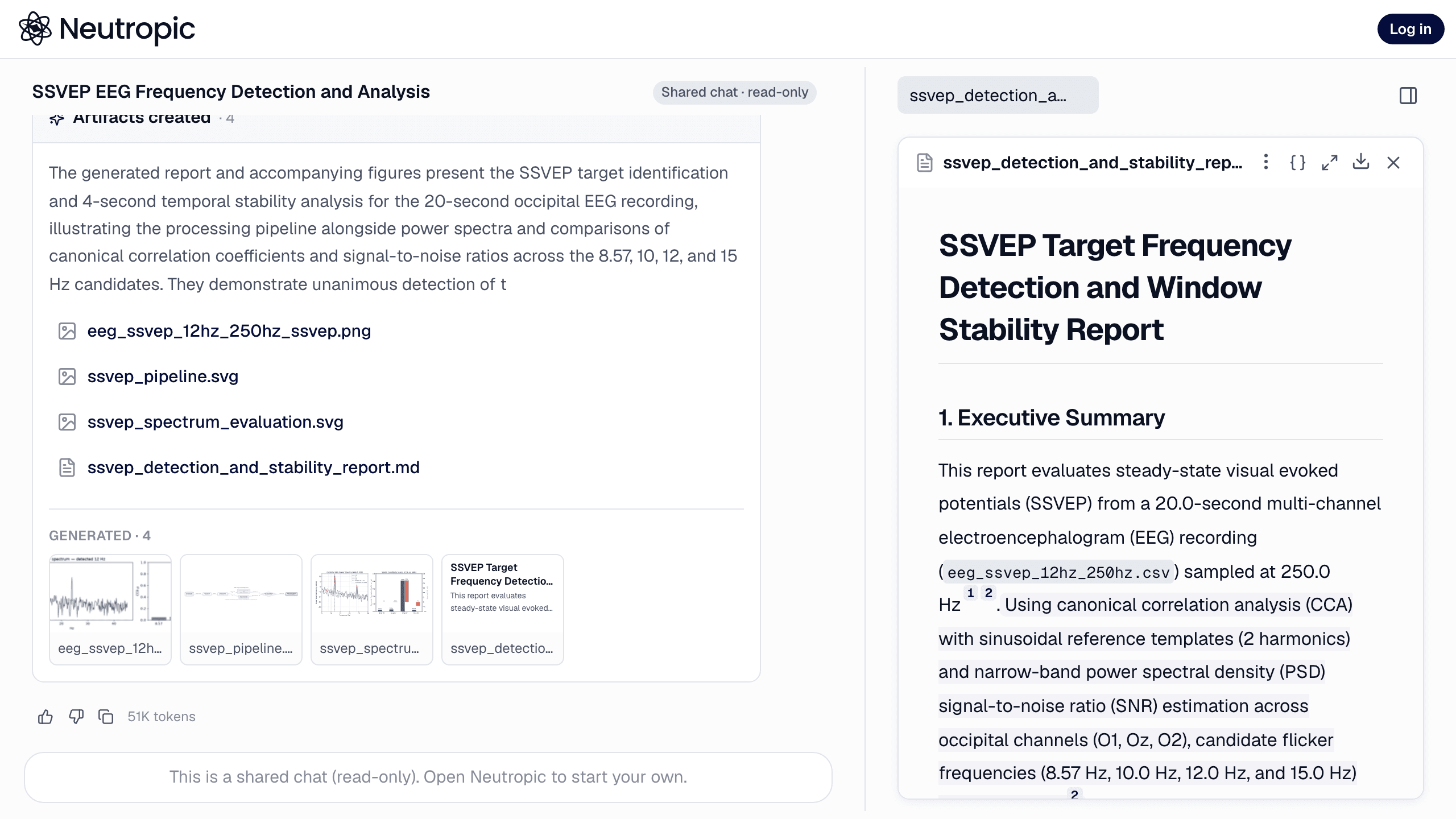
The page is the full chat screen with a thin bar on top: the Neutropic logo and a Log in button. Viewers can read every message, open each artifact in the panel, look through its versions and download files, just as you can. The composer is replaced by a note that the chat is shared. Search engines are asked not to index the page, and when you paste the link into KakaoTalk, Slack or another chat app, the preview shows the chat's title.
Viewers see the chat as it is now. If you keep working in it, the link shows the new turns as well.
Manage and revoke links
The share dialog lists the chat's Active links with the date each was created, how many times it has been viewed (once per visitor per day) and when it expires. Click Revoke to stop a link immediately — anyone opening it afterwards sees "This link has expired or was removed". Deleting the chat removes its links too.
Share links are view-only. Working on a chat together — commenting and editing — is planned for team plans.