Create an account
- Open neutropic.io and choose Get started (or go straight to
/signup). - Pick Continue with Google, or enter an email address and a password.
- If you used email, confirm the address from the message we send you. The link opens the workspace signed in.
Every new account starts on the Free plan: ≈ 3M managed tokens a month for cloud models and 1 GB of storage. Unlimited local-model turns and unlimited use of your own API keys will come with the desktop app, which is being prepared for release. See Plans & tokens.
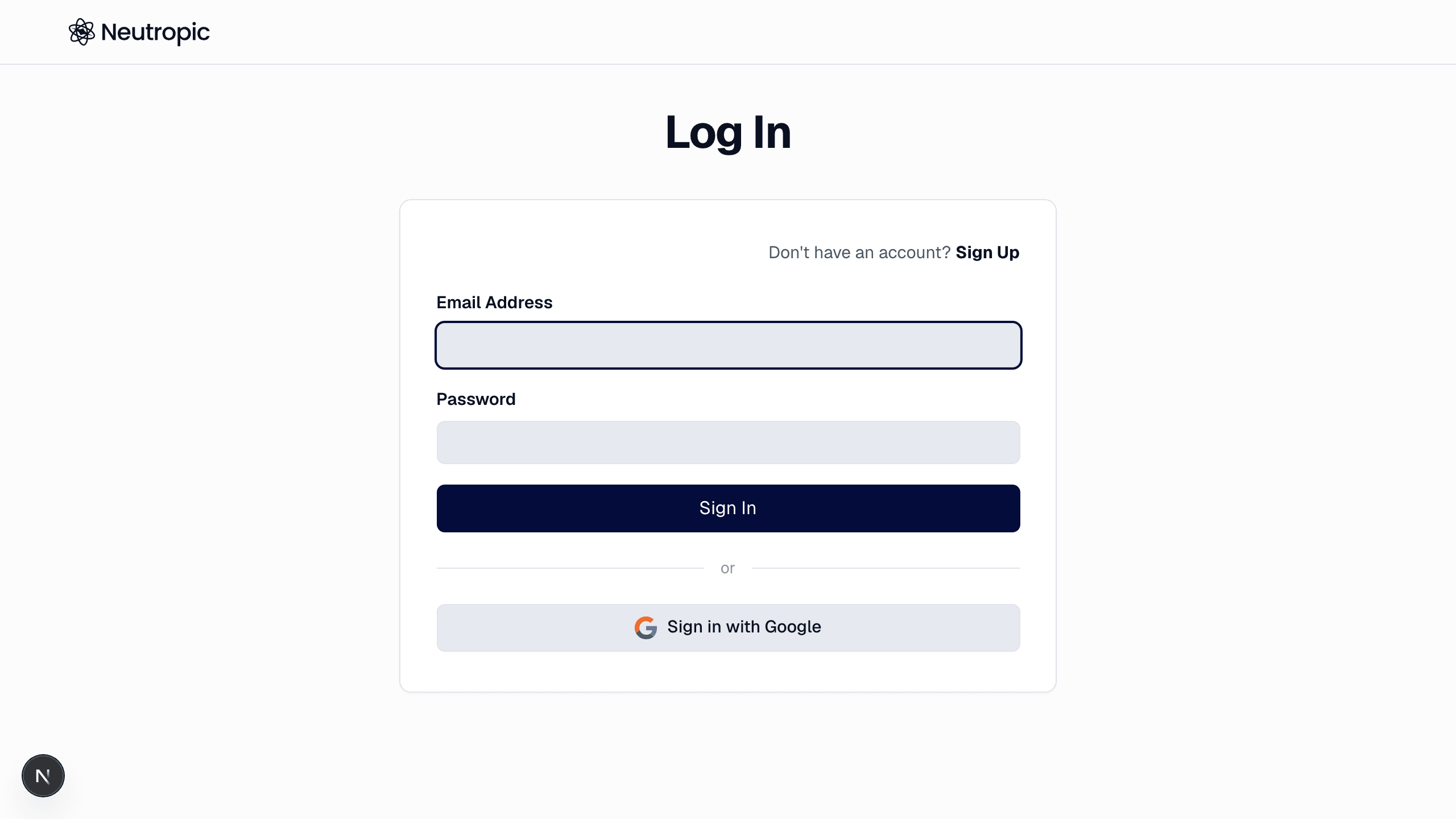
Sign in
- Web:
/login— Google or email + password. Sessions stay signed in on that browser until you sign out. - Desktop app (once released): the app opens the sign-in page in your system browser and returns through a
neutropic://link. If the browser doesn't hand back to the app, copy the link it shows and open it manually.
Google sign-in and email sign-in with the same address are the same account — you can use either.
Change or set your password
Open Settings › General (sidebar › Customize) and press Change password… in the Password row: Neutropic e-mails a password link to your account address (the same link as Forgot password? on the sign-in page). Open it in this browser and choose the new password; you can resend after 60 seconds. Accounts created with Google have no password — the same button, labelled Set a password…, sends the link so you can also sign in with email + password. Locked out? Use Forgot password? on the sign-in page — see Sign-in problems.
Sign out and switch accounts
Open the profile menu at the bottom of the sidebar (your avatar) and choose Log out. The same menu holds Settings, Language, Get help, Upgrade plan and Promotion (coupon codes). On a shared computer, log out rather than closing the tab.
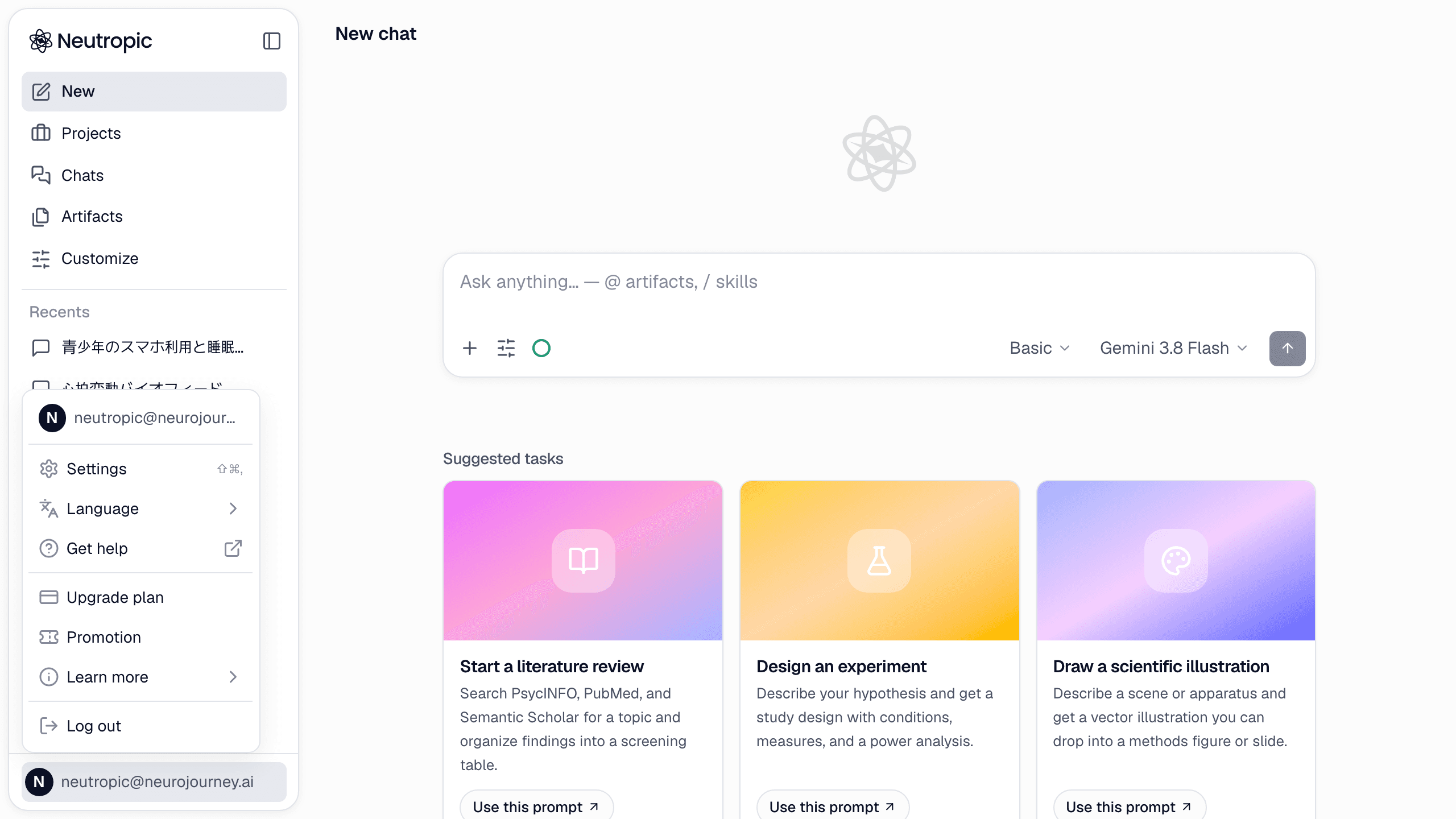
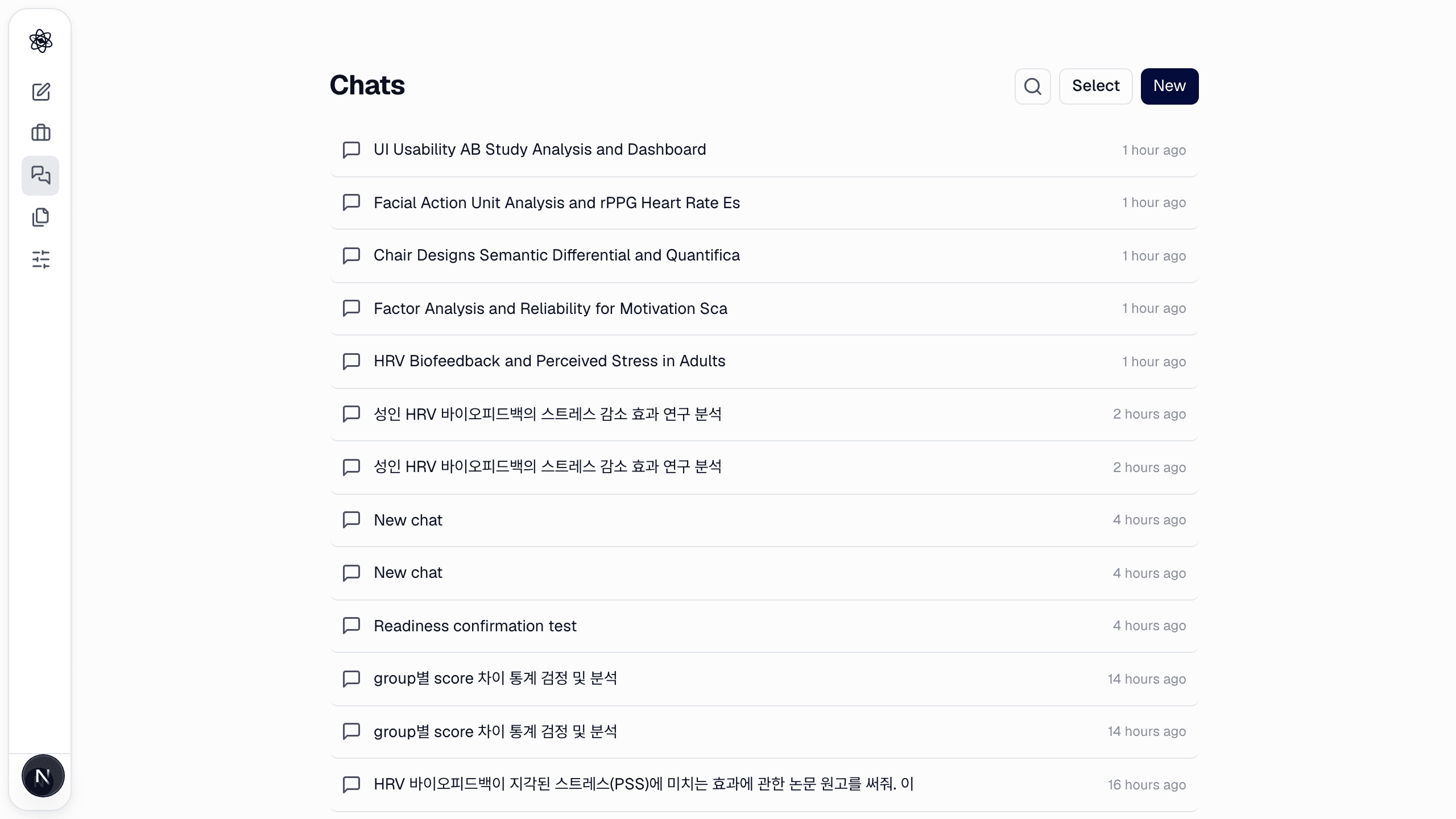
Where things live
- Chats — every session, newest first. Search by title or by the text of a message.
- Projects — folders that group sessions and share memory between them (Projects & memory).
- Artifacts — everything the agent produced across all sessions, filterable by type.
- Customize — skills, models, memory, connectors and account settings.
Trouble signing in? See Sign-in problems.