Attach a file
Press + in the composer, drag a file onto the chat, or paste it with ⌘/Ctrl+V — a screenshot or an image copied from another app lands in the composer as an attachment without saving it to a file first (it is named pasted-image-<date>-<time>.png; when the clipboard also carries plain text, as with a copied spreadsheet range, only the text is pasted). The file uploads to the session and appears as a chip above the composer. Send your request in the same message or later — uploads stay in the session.
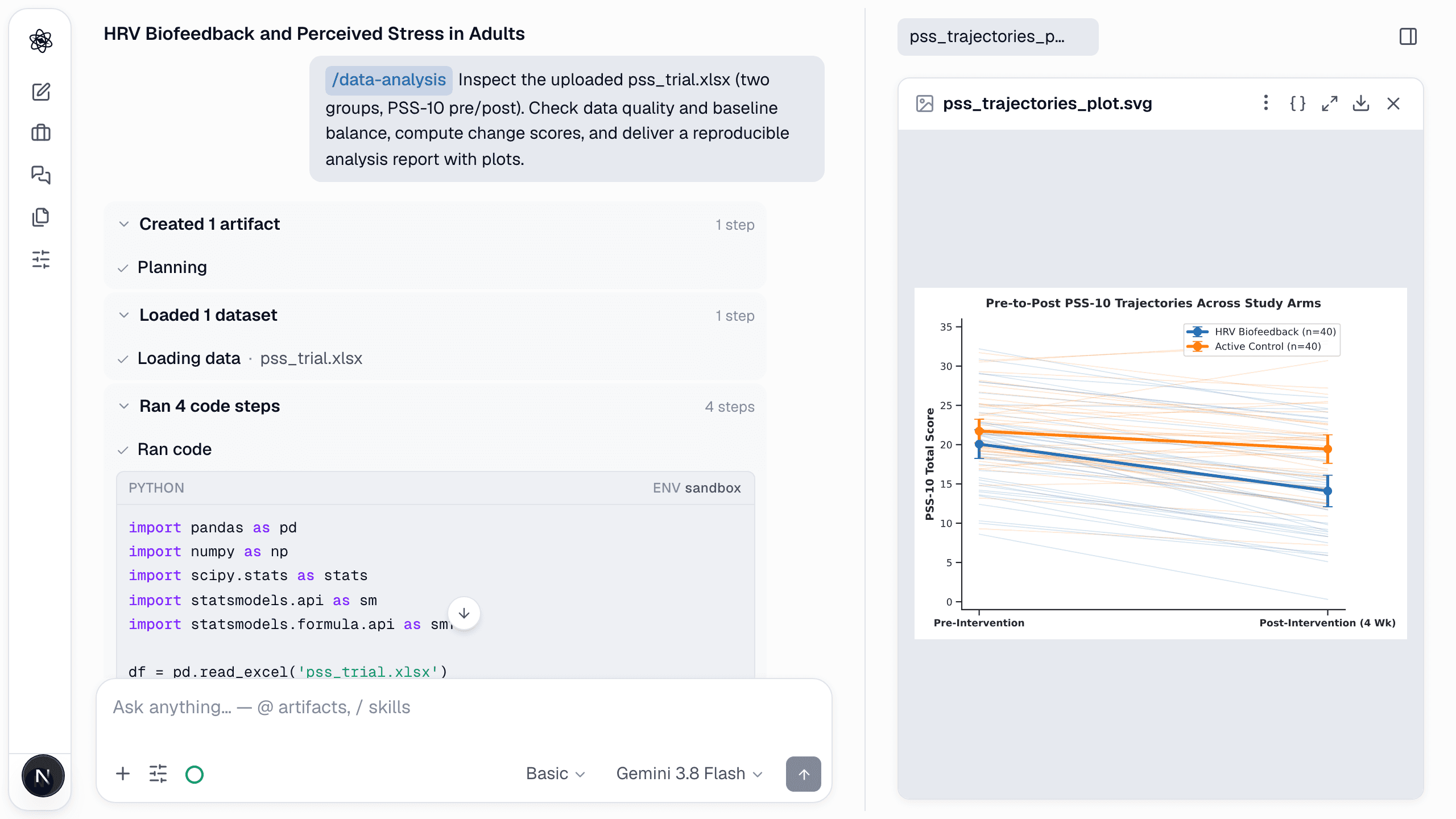
Formats the agent reads
Any file type can be uploaded (up to 1 GB). The formats below are opened and read by the agent; other files are kept in the session and can be referenced with @, but their contents are not read automatically.
| Kind | Formats | Used by |
|---|---|---|
| Tabular data | .csv .tsv .xlsx .xlsm .json .parquet .sav (SPSS) .dta (Stata) .xls .ods .mat (MATLAB) .rds .RData (R) | Data analysis, statistics, psychometrics, HCI instruments |
| Documents | .pdf .docx .doc .pptx .ppt .hwp .hwpx .rtf .odt .epub .txt .md | Literature (your own papers), writing, review |
| Images | .png .jpg .gif .webp .heic .bmp .tiff | Face/pose analysis, figure references |
| Audio | .wav .mp3 .m4a .flac .ogg .aac .aiff | Transcription, voice emotion, acoustic features |
| Video | .mp4 .mov .webm .avi .mkv .m4v | Facial action units, pose, remote PPG (rPPG) |
| Archives | .zip .7z .rar .tar .tar.gz/.tgz .tar.bz2 .tar.xz .gz .bz2 .xz .zst .jar .cab .iso … | Unpacked by the agent when your request needs the files inside; each file is then used by its path (survey/data.csv). ALZip-only .alz/.egg cannot be opened — re-save as .zip |
| Biosignals | Tabular exports (.csv .tsv .txt) with a time column — ECG, EDA, respiration, EEG with one column per channel (tell the agent the sampling rate if there is no time column) | HRV, EDA, EEG suite |
On a phone you can also record a video directly with the camera button.
Documents, workbooks and protected files
- Long documents are read in parts. The agent sees the beginning first and reads the rest when your request needs it, so "summarize chapter 5" works on a long thesis.
- Excel workbooks: every sheet is listed to the agent, and it loads the sheet your request is about. Name the sheet to be exact: "use the Budget sheet". A form-style sheet without a header row (an application form, a plan) is read as text, cell by cell.
- Text encoding: CSV and text files saved in a Korean (CP949/EUC-KR), Japanese (Shift-JIS) or Chinese (GB18030) code page are detected and read correctly.
- Password-protected files cannot be opened. Remove the password in the app that created the file (or save an unprotected copy or a PDF) and attach it again. Please do not type passwords into the chat — the assistant does not use them.
- Scanned PDFs have no text layer. The agent looks at the pages as images — all of them, at a lower resolution when there are many — and can answer follow-up questions about them. Small print on a long scan may be hard to read; a text-based PDF is still more reliable.
- Slides (
.pptx,.ppt): text, tables, chart data and speaker notes are read. - Pictures inside documents: when you attach a Word, PowerPoint, Hangul or OpenDocument file, the agent also looks at all of its pictures (small icons are skipped), and for a PDF at every page that contains a figure. So you can ask about any chart or screenshot in a report. A document with many pictures uses more tokens; the pictures are sent at a lower resolution when there are very many.
- Photos: large photos are resized automatically before the agent looks at them, and iPhone HEIC, BMP and TIFF images are converted. Attach the photo with
@so the agent can see it. - Very long PDFs are read in full. The agent is told when some pages are scanned images without text.
- Excel formulas: if a workbook was saved without calculated results, those cells are empty; the agent says so rather than treating them as missing data.
Reference a file with @
Type @ in the composer to pick an uploaded file or an existing artifact. The reference is inserted as a badge and tells the agent exactly which file the request is about — useful when a session has several datasets.
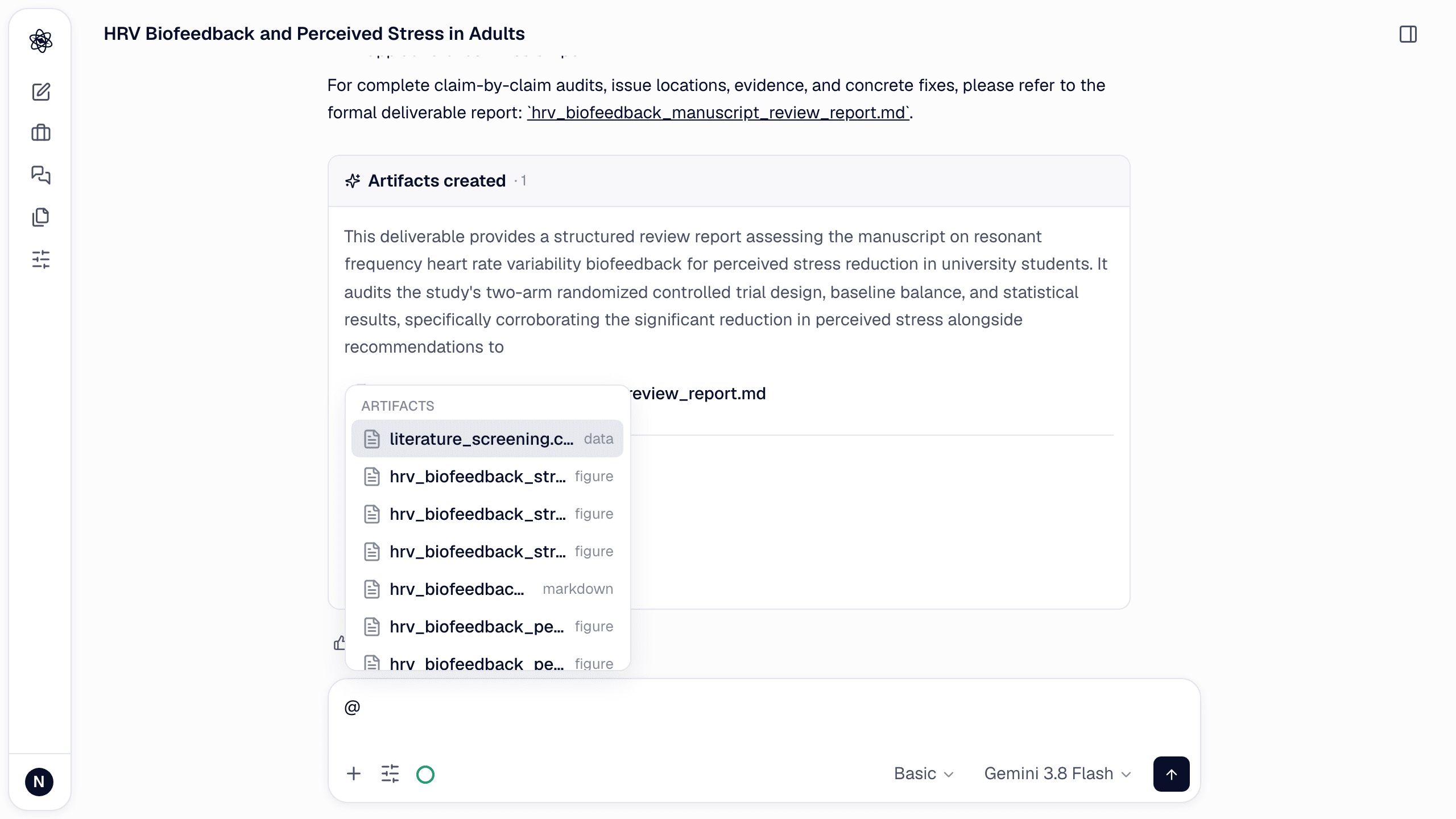
@pss_trial.xlsx Test whether the biofeedback group reduced PSS-10 more than control.
Without an @, the agent uses the most recent relevant upload.
Import from Google Drive or Notion
If the Google Drive connector is connected, the + menu lists Google Drive under Connected apps. Choose from Google Drive… opens Google's file picker — Neutropic only sees the files and folders you pick there — and the list below it shows what you have already shared, searchable. Picked files are imported as session uploads.
With the Notion connector, Connected apps also lists Notion, which browses your shared pages the way Notion's sidebar does; pages are imported as Markdown and databases as CSV datasets. With the Zotero connector, Zotero shows your library — My Library and groups, collections, items — and imports an item's PDF (or its metadata and abstract when there is no PDF). With the GitHub connector, GitHub browses your repositories, directories and files, and imports data files and scripts.
Limits
Storage counts uploads and artifacts together against your plan — 1 GB on Free, 5 GB on Lite, 20 GB on Pro, 50 GB on Max. Usage is shown in the storage row under Customize → Usage. When you hit the limit, uploads are refused with a message that shows usage and plan; delete old sessions or artifacts, or upgrade. See Usage & storage and Uploads fail or quota exceeded.