Connect
Open Customize → Connectors and turn on Dropbox. Dropbox's own page asks you to allow Neutropic access to your files; approve and you land back with your Dropbox e-mail shown. Tokens are stored encrypted on the server and refreshed automatically; Disconnect deletes them (you can also remove the app under Dropbox → Settings → Apps).
Permissions, tool by tool
Every tool starts as Ask each time. Paths start with / (for example /Research/trials.csv).
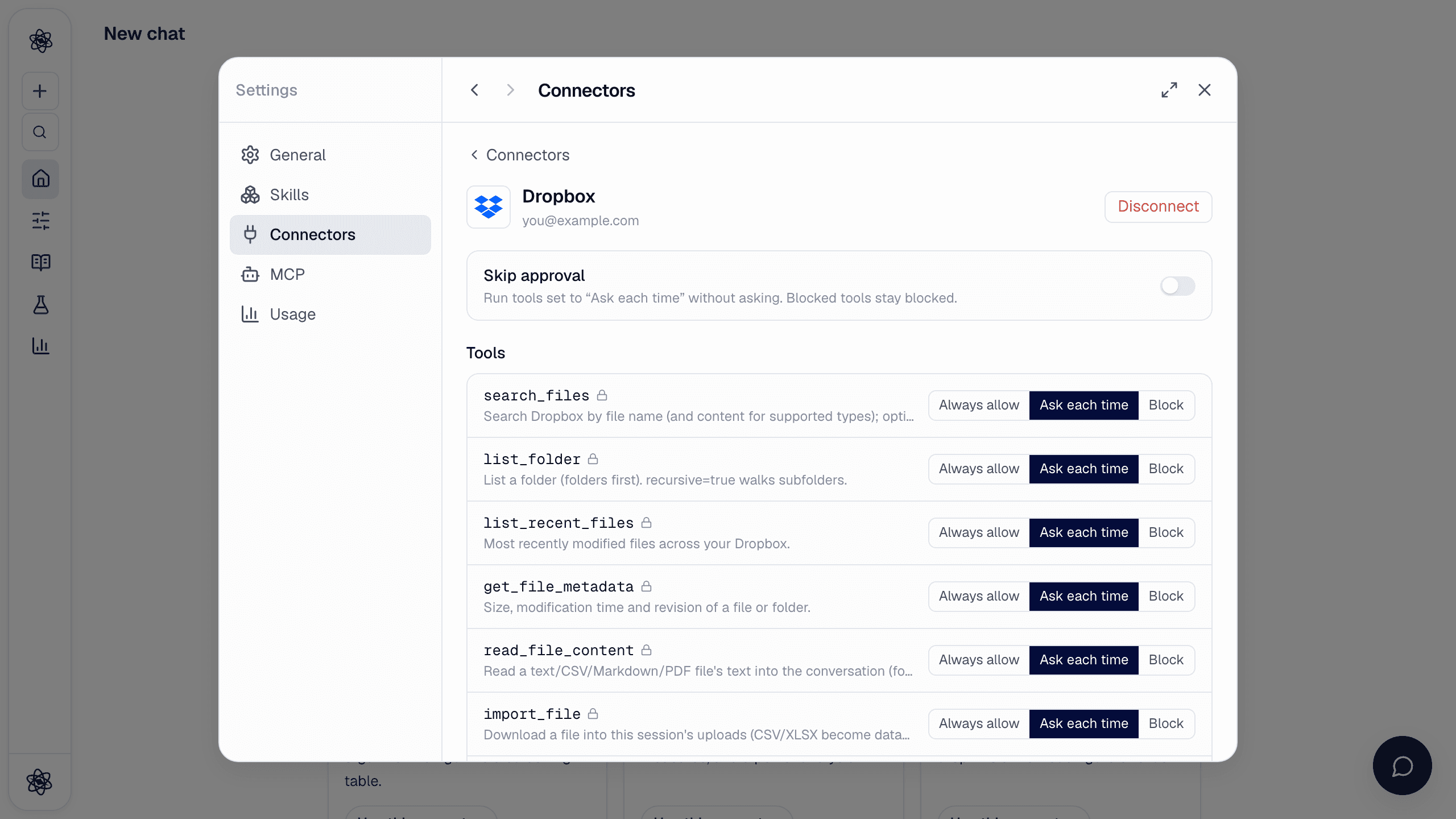
| Tool | Does |
|---|---|
search_files · list_folder · list_recent_files · get_file_metadata | Search by name, browse folders, recent files, metadata |
read_file_content | Read a text, CSV, Markdown or PDF file into the conversation |
import_file | Download a file into the session as an upload — CSV/XLSX become datasets, PDFs and documents become readable |
create_file · create_folder | Save a report or table as a new file; create folders |
share_link | Create a public shared link (asks first) |
Use it in a chat
- "Load `/Research/trials.csv` from Dropbox and run the mixed model" →
import_file→ analysis. - "Save this report to my Dropbox Research folder" →
create_file.
Pick from the composer and export
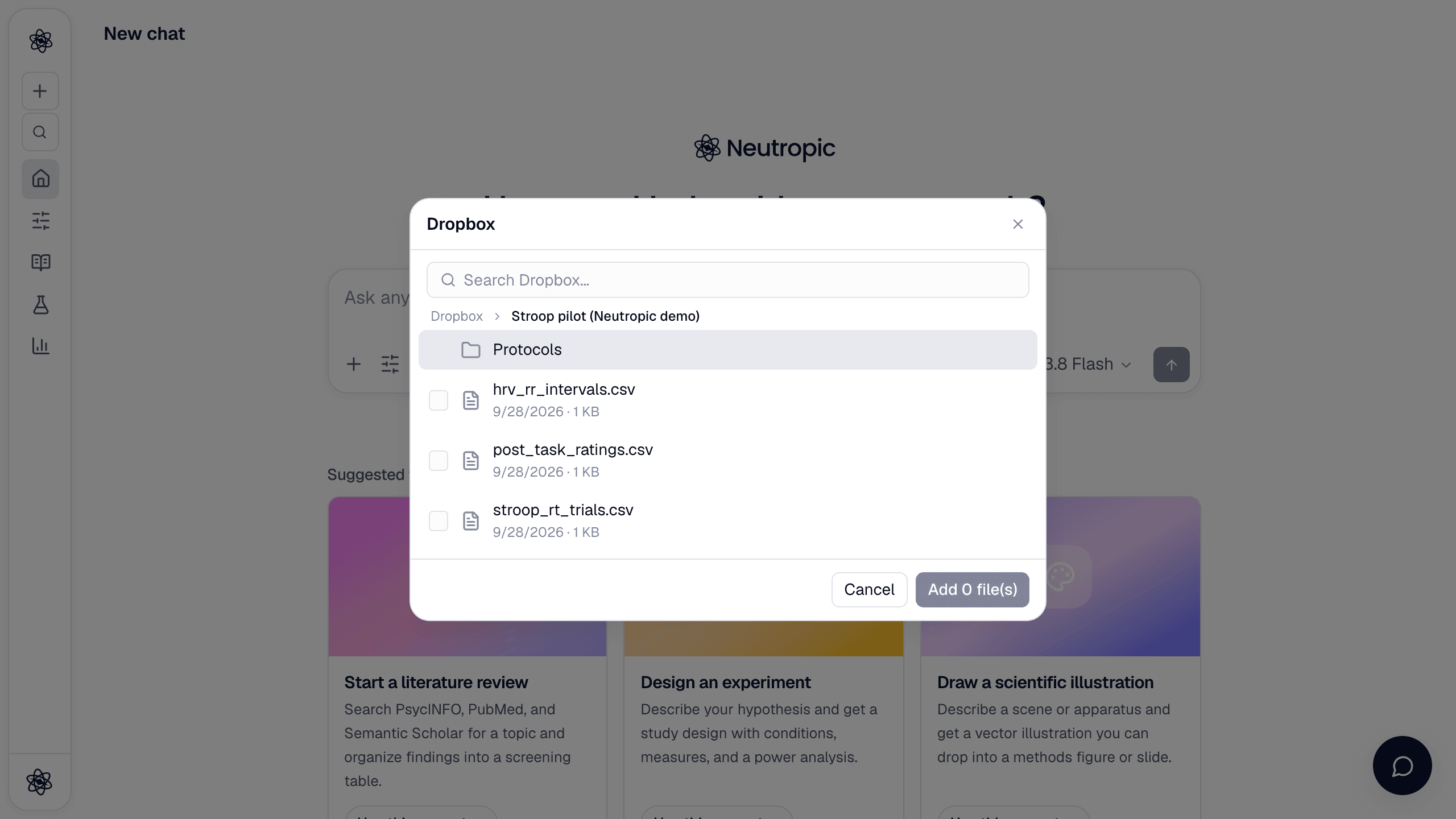
+ → Connected apps → Dropbox shows your folders → files; tick files to import them. Export to… → Dropbox asks for a folder and saves the artifact there.
Trouble? See Connector authorization.