Connect
Open Customize → Connectors and turn on Slack. Slack's page asks you to allow the Neutropic app in your workspace (some workspaces require an admin to approve apps first); approve and you land back with your Slack user and workspace shown. Tokens are stored encrypted on the server; Disconnect deletes them.
Neutropic acts as you (a user token): messages and files appear under your name.
Permissions, tool by tool
Every tool starts as Ask each time. Posting and uploading are visible to other people, so the agent is told to ask before posting.
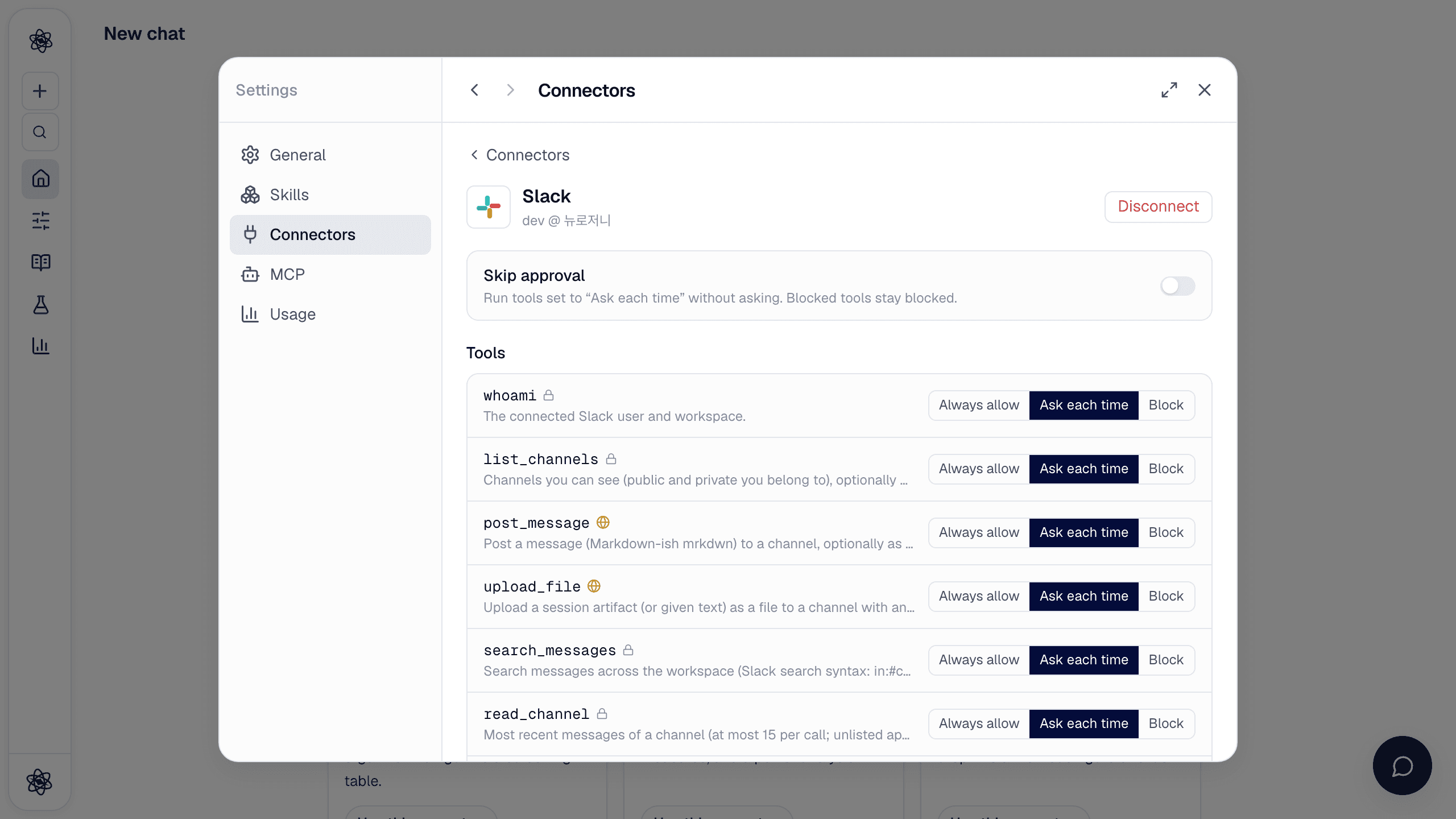
| Tool | Does |
|---|---|
list_channels | Channels you can see (public, and private ones you belong to) |
post_message | Post a message, optionally as a thread reply |
upload_file | Share a session artifact (report, table, figure) as a file with a comment |
search_messages | Search messages with Slack's syntax (in:#channel from:@user after:2026-09-01) |
read_channel · import_channel | The 15 most recent messages of a channel — read them, or save them into the session as Markdown |
Slack limits apps that are not listed in its Marketplace to reading 15 messages per call and one call per minute per channel; search is not limited.
Use it in a chat
- "Post the summary of this analysis to #eeg-study" →
post_message(asks first). - "Share the report PDF in #lab-general with a short note" →
upload_file. - "What did the team say about consent forms last week?" →
search_messages.
Pick from the composer and export
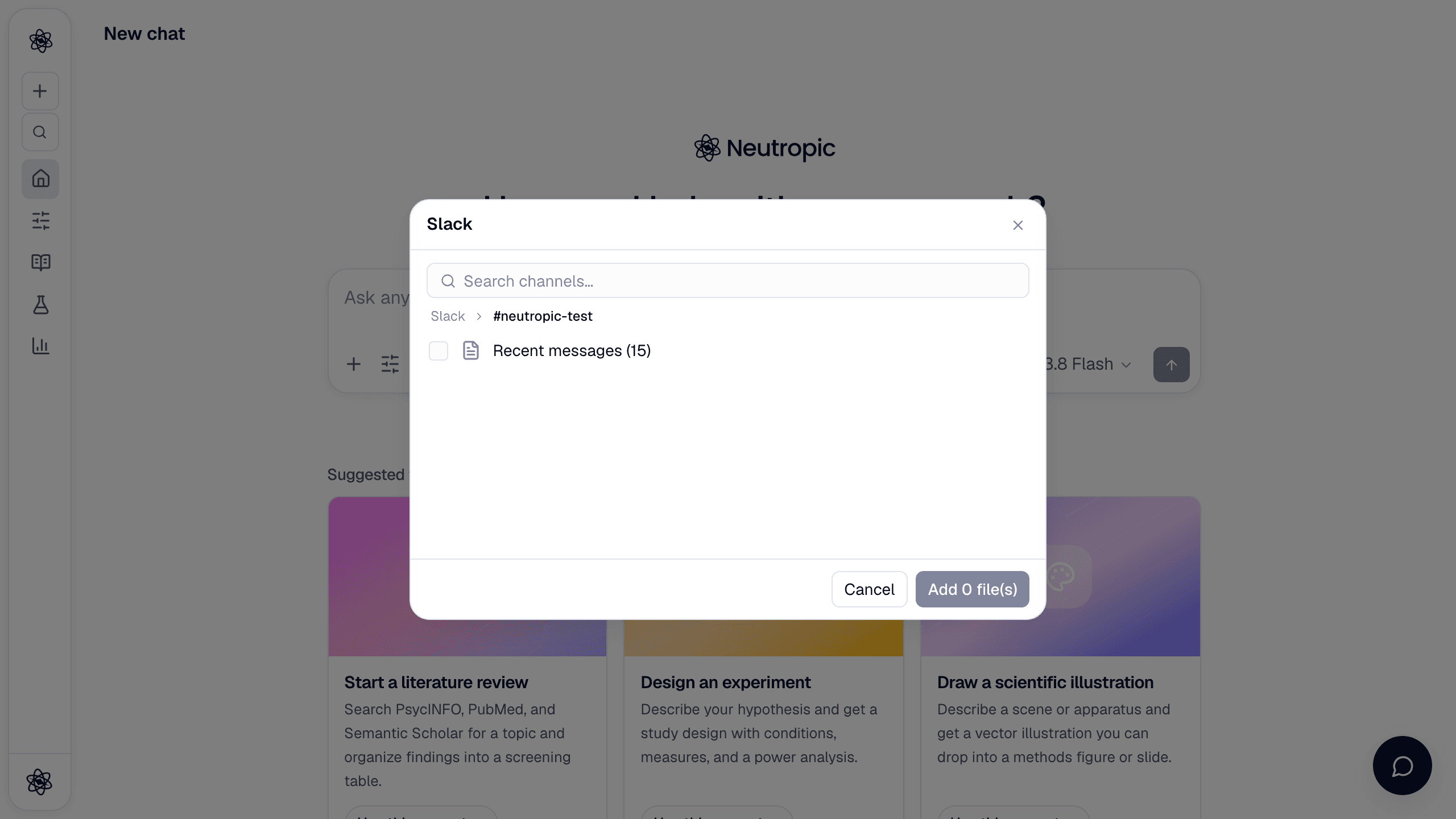
+ → Connected apps → Slack lists your channels; open one and tick Recent messages to import them. Export to… → Slack asks for a channel and posts the artifact there as a file.
Trouble? See Connector authorization.