An agent is a tested workflow for one kind of research work — for example search these databases → screen → extract → write a cited report, or check the data → choose the test → run it → report effect sizes. Each agent fixes its steps in advance, so the same task is done the same careful way every time. You run it from Home like any chat; it uses your tokens like any other task.
Browse the gallery
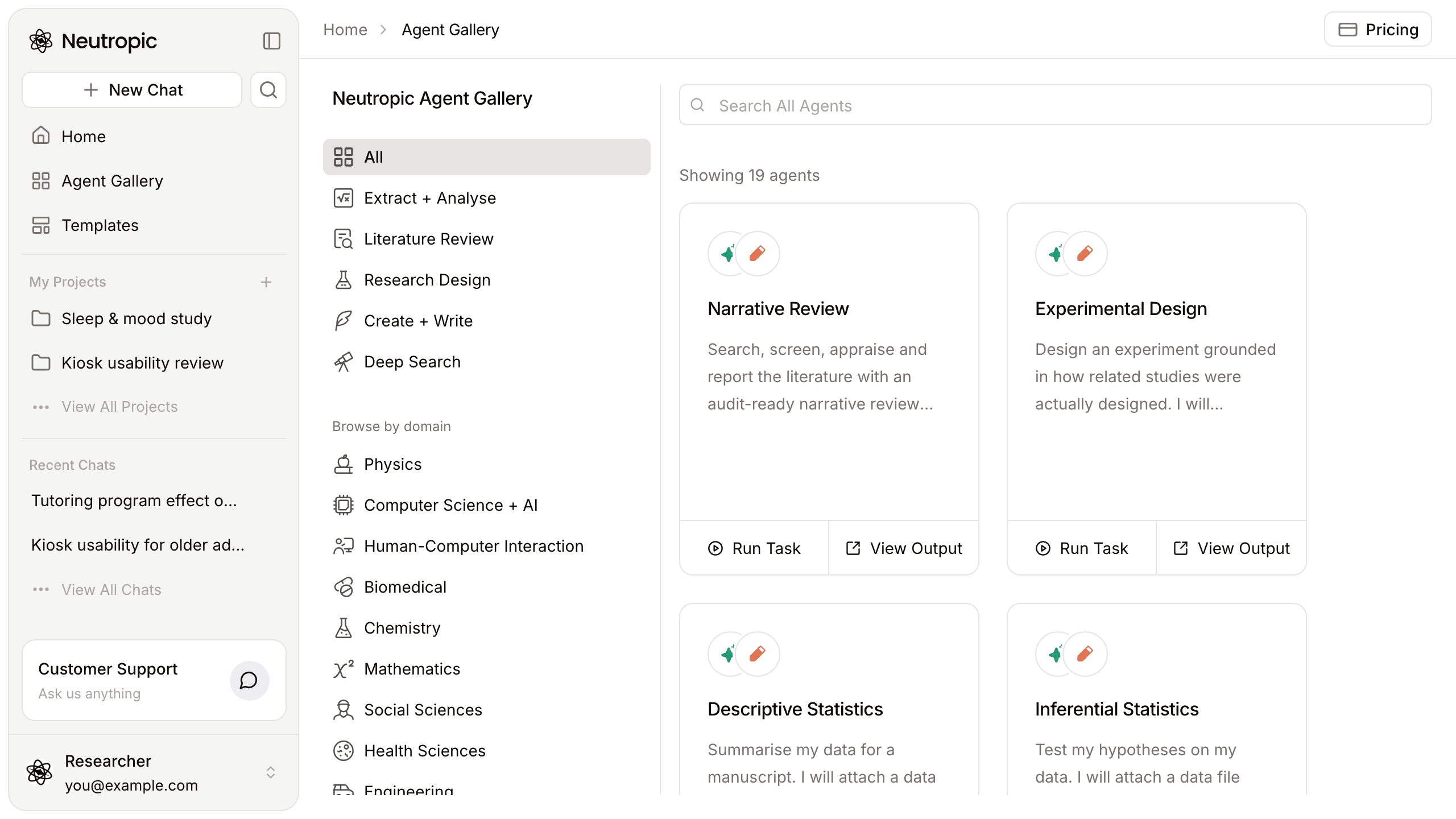
Agent Gallery in the left panel shows every agent:
- Categories on the left — All, Extract + Analyse, Literature Review, Research Design, Create + Write, Deep Search.
- Browse by domain — Physics, Computer Science + AI, Human-Computer Interaction, Biomedical, Chemistry, Mathematics, Social Sciences, Health Sciences, Engineering. Each shows how many agents it has; agents without a domain work in any field.
- Search All Agents, and in some categories task chips such as Analyse my Data, Search Papers or Write a Draft.
Each card shows the agent's steps and output type, its name and what it does, with Run Task and View Output at the bottom. On narrower screens the categories become a menu at the top.
See the template catalog for every agent with its workflow.
An agent's page
Click an agent's name to open its page:
- Run this — the example task, Run Task, and for agents that work on a file, Try with sample data. View Agent Steps shows the steps of a real example run.
- Agent works for you — the steps it runs, in order.
- Get this — a sample of the output; click it to explore the full result.
Below come similar agents, About the agent (what it does, what it needs, what changes with the level — on a phone, choose a level to see its column), frequently asked questions and references.
Run an agent
- Press Run Task on a card or an agent's page. Home opens in a new tab with that agent and its example task in the composer.
- Edit the task — your question, population, variables, the output you want. If the agent works on a file (data, recordings, a manuscript), attach it with + → Upload files.
- Pick a level next to Send (Lite · Pro · Expert · Max Thinking) and send.
- Each step appears as it runs — searches, code, files, reviewer checks — then the answer and the files. See Your first task.
View Output shows a sample output from a real run, so you can see what you will get before spending tokens.
You don't have to start from the gallery: when you type a task on Home that one of the agents does well, Neutropic suggests it — Run with this agent or Just answer here.
Next
- Template catalog — every agent with its steps and an example task
- Your first task — levels, step cards and files