Connect
Open Customize → Connectors and turn on Figma. Create a personal access token at figma.com → Settings → Security → Personal access tokens with the scopes current_user:read (needed to connect), file_content:read, and optionally file_comments:read / file_comments:write (comments) and projects:read (team projects) and paste it; Neutropic shows your Figma account. The token is stored encrypted on the server; Disconnect deletes it.
Permissions, tool by tool
Every tool starts as Ask each time. Reading tools return a file's structure and text; export_images saves rendered frames into the session; post_comment writes to the file.
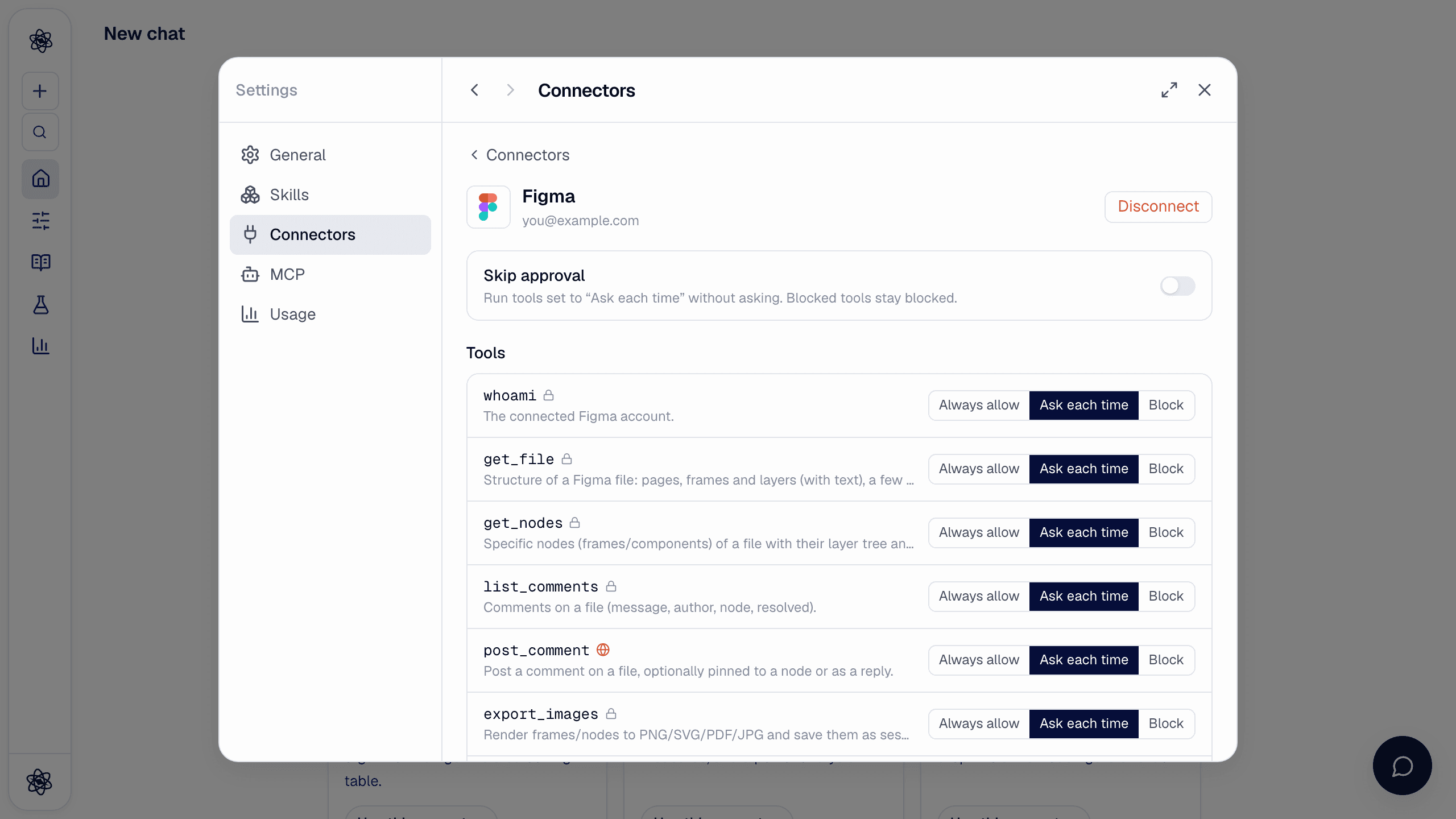
| Tool | Does |
|---|---|
get_file · get_nodes | Pages, frames and layers of a file with their text; specific nodes in depth |
list_comments · post_comment | Read comments; post one (optionally pinned to a node or as a reply) |
export_images | Render frames to PNG/SVG/PDF/JPG and save them as session uploads — figures for a report |
list_team_projects · list_project_files | Browse a team's projects and files |
Paste a Figma URL anywhere a file is expected; the file key and node id are read from it.
Use it in a chat
- "Export the consent and task screens of our study app as PNG and put them in the methods section" →
export_images→ figures in the report. - "List the text of every screen in this Figma file so we can check the wording against the protocol" →
get_file/get_nodes. - "Leave a comment on the consent screen that the font is below 16 px" →
post_comment.
Trouble? See Connector authorization.