Create a notebook
A notebook is a document inside a project. Create one with + Notebook on the project page, or turn a report from a chat into one with Save to notebook in the file panel (Files & the panel). The project's Notebooks tab lists them; each row's ⋮ menu has Rename and Delete.
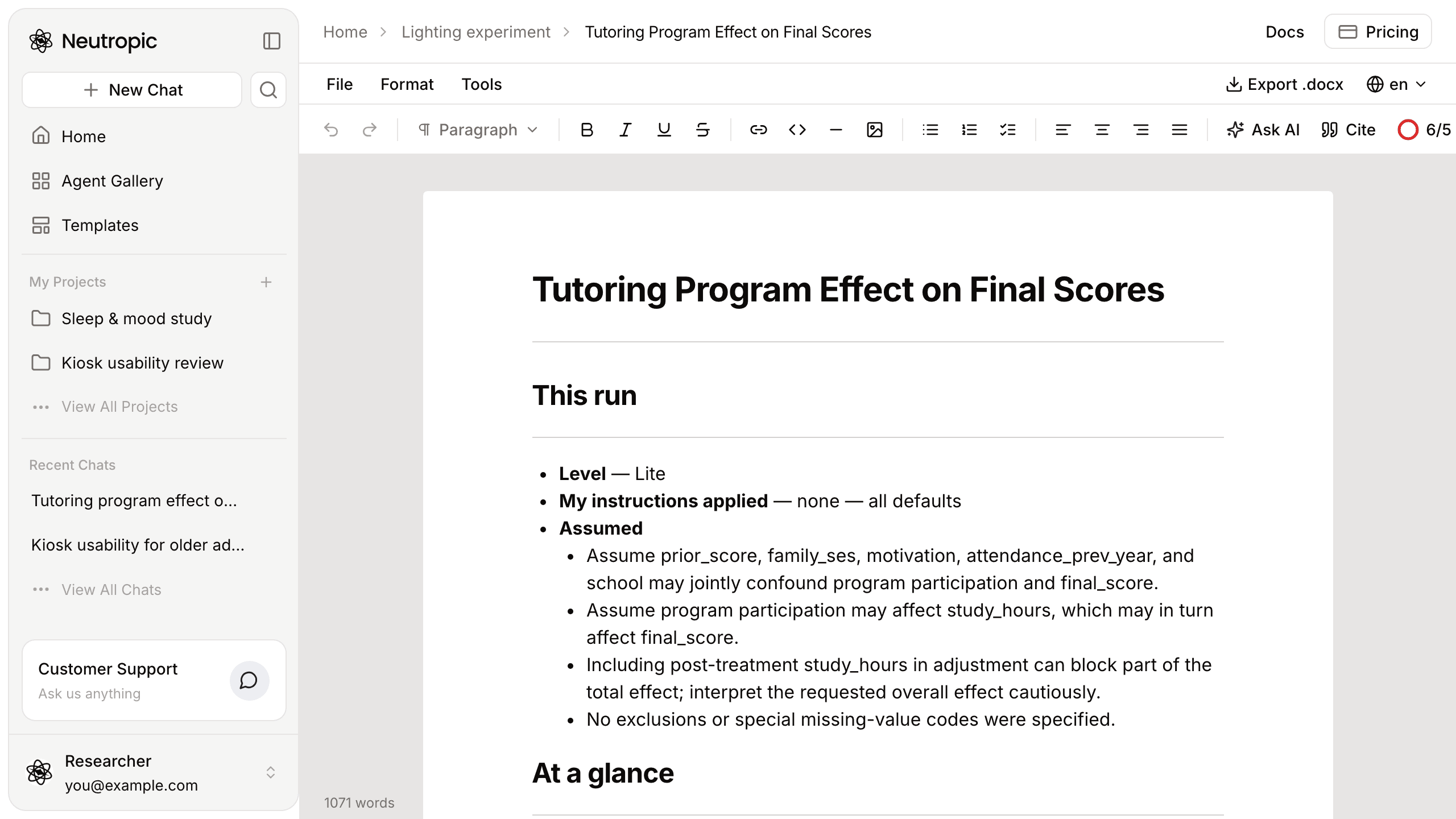
The first heading is the notebook's name. Changes save automatically.
Write with AI
- On an empty notebook, Start writing with AI asks What are you writing today? and drafts from your answer.
- Type / at the start of a line for the command menu: - Type your own request in the box at the top — Ask AI to write anything. - Draft with AI — Continue writing with citations, Outline Builder. - Generate from page — Write Introduction, Write Conclusion, Write Opposing Arguments, based on what the page already says. - Turn into a heading, a list or a to-do list; Insert a table, a horizontal rule or an image.
- Ask AI in the toolbar (or Tools → Ask AI) opens the same menu where the cursor is.
The 🌐 button sets the AI output language — the language the AI writes in (English by default; search the list to find yours). It is remembered per notebook. On the Free plan the toolbar shows how many AI actions are left this month.
Format
The toolbar has undo and redo, the block type (paragraph, Heading 1–3), bold, italic, underline, strikethrough, link, code, horizontal rule, image, bullet, numbered and check lists, and alignment. The same commands are in the Format menu. Images are stored in the project (up to 20 MB each).
Citations and references
Press Cite in the toolbar, or type @, to add a citation where the cursor is:
- Suggestions — papers that fit the paragraph you are writing (or your search words).
- Papers — search PubMed and Crossref.
- My library — the files uploaded to the project.
- Created by me — references you entered by hand.
- + Create new — enter a reference by hand (journal article, book, web page and other types) with a preview.
+ Cite on a result inserts it and adds it to the reference list.
Each citation appears in the text in the current style; hover it to see the source. The reference list at the bottom is built from the citations — press Style: APA (or the current style) and choose another from Choose a citation style (APA, IEEE, MLA, Chicago and others); every citation in the notebook is updated. Footnote styles add a Notes section.
On the Free plan only the first reference is shown in full; Unlock References shows the plans that include the full list.
Export and delete
Export .docx (top right, or File → Export .docx) downloads the notebook as a Word document. File → New creates another notebook in the same project; File → Delete notebook deletes this one — this can't be undone.