What Enterprise is
Enterprise lets a university department, an institute or a company give Neutropic to its people under one contract. Each member keeps working in their own account, exactly as an individual does. Their projects and chats stay their own; the organization's contract covers the plan and the tokens.
How it differs from a personal plan:
- We set it up with you. There is no card checkout. You agree a contract with us (seats, monthly tokens, storage and term), and we create the organization for your email domain and, if you have one, your single sign-on.
- Members connect with their institution. They find the institution on the pricing page and sign in once with its single sign-on, or sign up with an address on the organization's domain.
- One invoice for the whole organization, instead of a card per person.
The Partner institutions box
Enterprise lives at the bottom of the pricing page, in the Partner institutions box. Read More opens the full list of what is included: admin-managed access, a shared token pool, one contract and invoice, single sign-on, dedicated support, and add-ons such as custom limits and integrations.
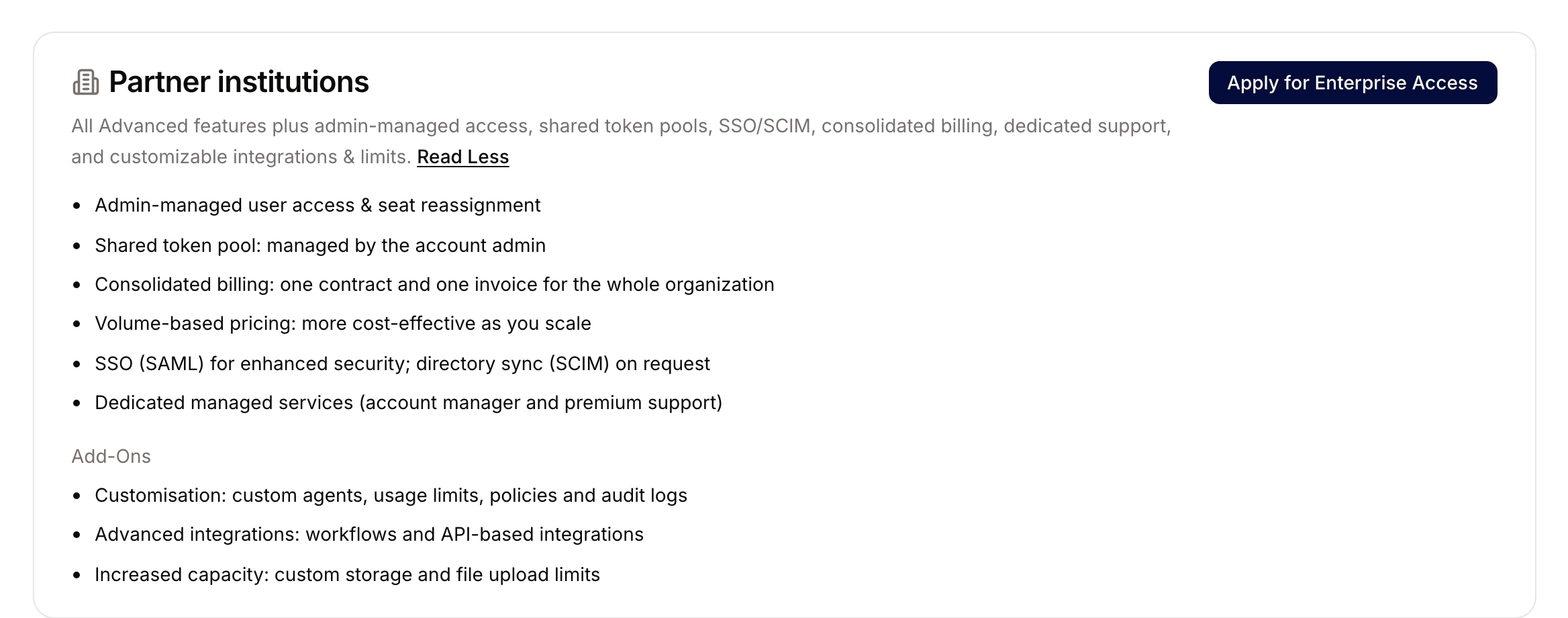
Connect your account to your institution
- On the pricing page, press Apply for Enterprise Access in the Partner institutions box.
- Under Find your institution, type part of its name. The list only appears once you start typing, so search for a word in the name (for example the city). English, Korean, Japanese and Chinese names all work.
- Pick your institution and press Continue.
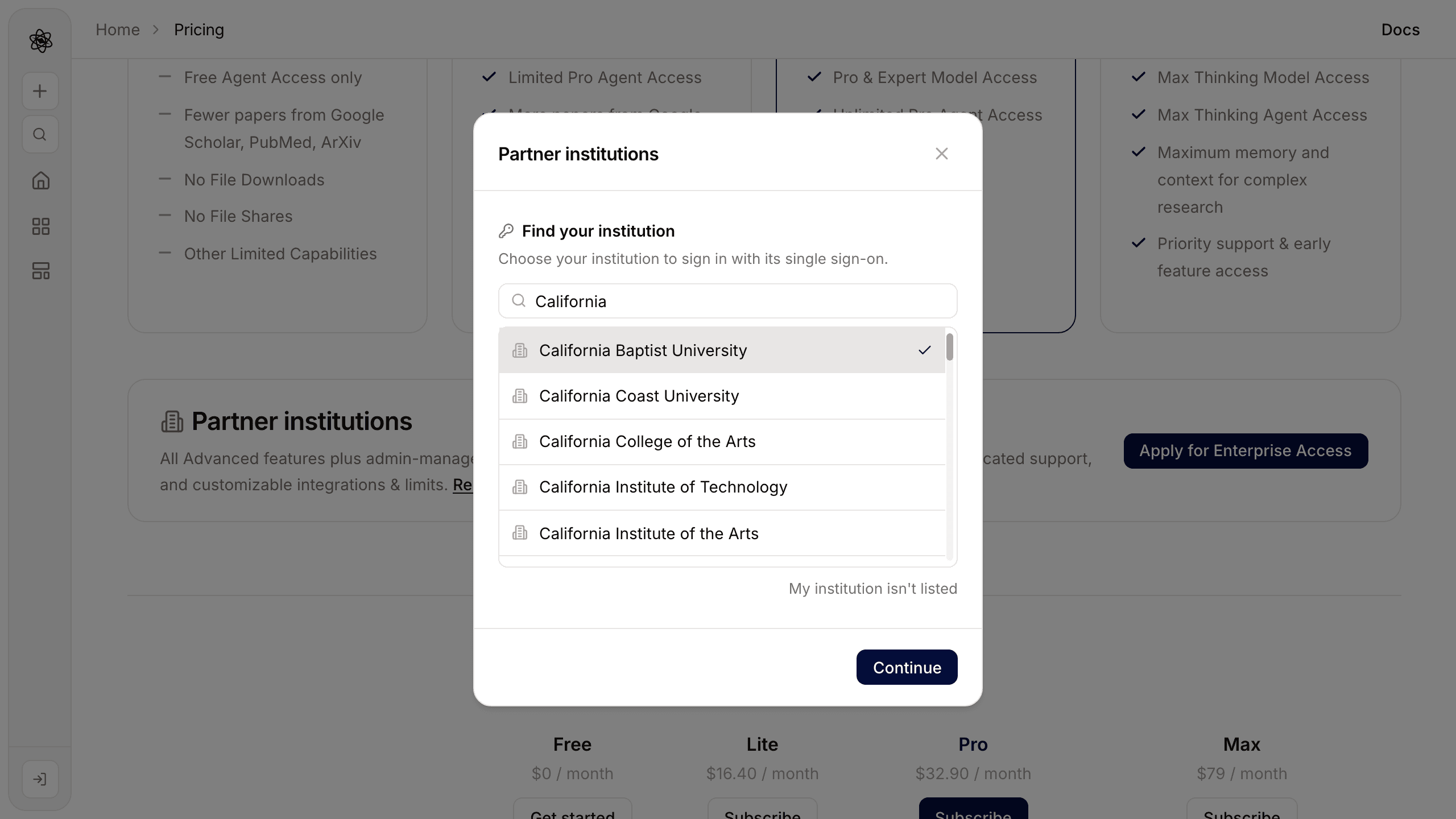
What happens next depends on your institution:
- Your institution already uses Neutropic. You are sent to your institution's sign-in page once. After you sign in, you come back to the same Neutropic account you were using, with your projects and chats where you left them, and a notice confirms the connection. If your account's email is already on the institution's domain, the connection happens right away without the sign-in step.
- You weren't signed in yet. You are asked to log in or sign up first. Then come back to the box, choose your institution again, and connect your account.
- Your institution hasn't set up Neutropic yet. The window says so and offers Request access, which opens the inquiry form with your institution's name filled in.
Once connected, the Partner institutions box shows Current plan and says which organization covers your account. Your tokens come from the organization from then on.
One institution account can be connected to one Neutropic account only. If the institution account is already used by another Neutropic account, or your account belongs to another organization, the window tells you so; contact the Neutropic team if you need to move it.
Ask us to set up your organization
If your institution isn't in the list, press My institution isn't listed (or Request access on a not-yet-set-up institution). Fill in your name, work email, organization, roughly how many people, and what you need, agree to the privacy notice, and press Send inquiry. We reply by email within two business days.
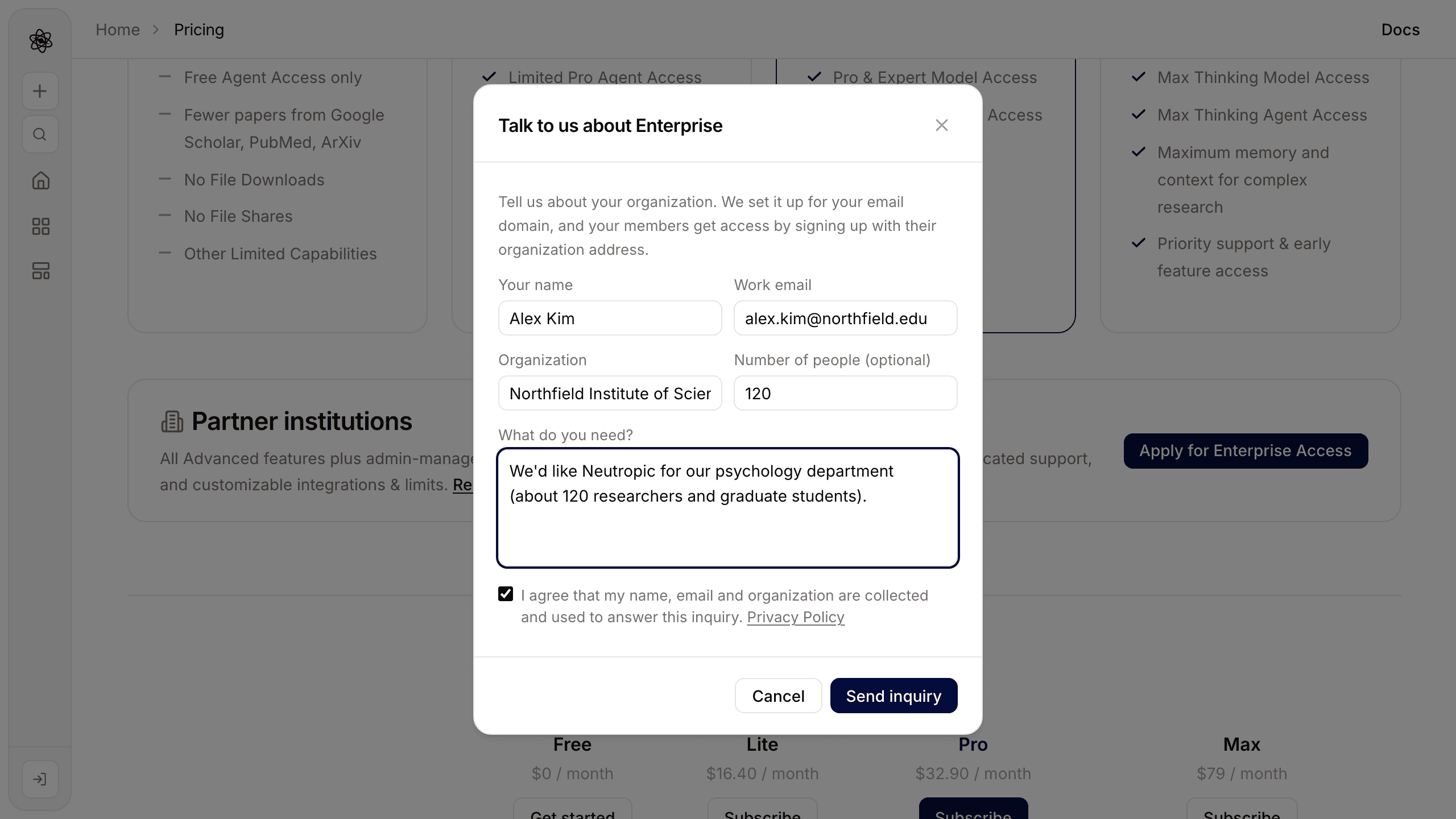
Joining with an organization email address
Members can also join without the pricing page:
- Sign up with your organization email address (for example
name@your-university.edu) and confirm it from the email we send. Signing in with Google works too, if the Google account uses that address. - Open Neutropic. A notice says you are now in your organization. Nothing else changes: you work in your own space as before, with the organization's plan and tokens.
Things to know:
- Only organization addresses join this way. An account made with a personal address (or with Sign in with Apple, which hides the address) is not added automatically. Use Apply for Enterprise Access to connect it through your institution's sign-in instead.
- If every seat is taken, you see waiting for a seat. An admin of your organization, or we, can add seats; you are let in as soon as one is free.
- If your organization uses admin approval, your request waits until an admin approves it.
- If you already had a personal account on the same address, your projects and chats stay where they are and the organization's plan applies from then on. A personal subscription you were paying for is not cancelled automatically; cancel it under Settings → Billing if you no longer need it.
Single sign-on
If your organization has an identity provider (SAML, for example Okta, Microsoft Entra ID or Google Workspace), we connect it together with your IT team. Your institution then appears in the Find your institution search.
- When single sign-on is required for your organization, accounts on the same domain that sign in with a password or Google are not added automatically. They see a notice to connect their account under Partner institutions on the pricing page, signing in once with single sign-on.
- The current state is shown under Organization settings → Organization and access → Authentication.
For organization admins
The person named in the contract becomes the owner. Owners and admins manage the organization in Organization settings:
- Members: see who joined, change roles, set a weekly cap for a member, and remove people. Someone you remove is not added again automatically; invite them if they should return. Invitations go to addresses on your organization's domain only.
- Organization and access: organization instructions and new member approval (automatic or admin approval).
- Billing: the contract, with seats used and contracted, monthly tokens and what is left this month, storage, the contract end date and the domains members sign up with. To change any of these, contact us.
- Usage: consumption by member.
- Audit log: who changed what, such as members joining, being removed or changing role and seat, invitations, domains, organization settings, projects and agents shared in the organization. You can download it as CSV. Sign-ins, file downloads and the contents of chats are not part of this log.
Tokens and storage
- The organization has one monthly token pool set in the contract. It refills every month, and unused tokens don't roll over. Extra tokens we add outside the contract don't expire and are used after the monthly pool.
- Members have no weekly cap by default; they draw on the organization pool. Admins can set a weekly cap for a member on the Members page.
- Each member's storage is the same as on the personal Max plan.
Leaving
To stop using your organization's plan, press Leave Enterprise in the Partner institutions box on the pricing page (or under Settings → Billing) and confirm. Owners can't leave their own organization.
When you leave or an admin removes you, your account goes back to your personal plan (Free unless you subscribe). Your projects, chats and files stay in your account, and you can connect again later from the pricing page.