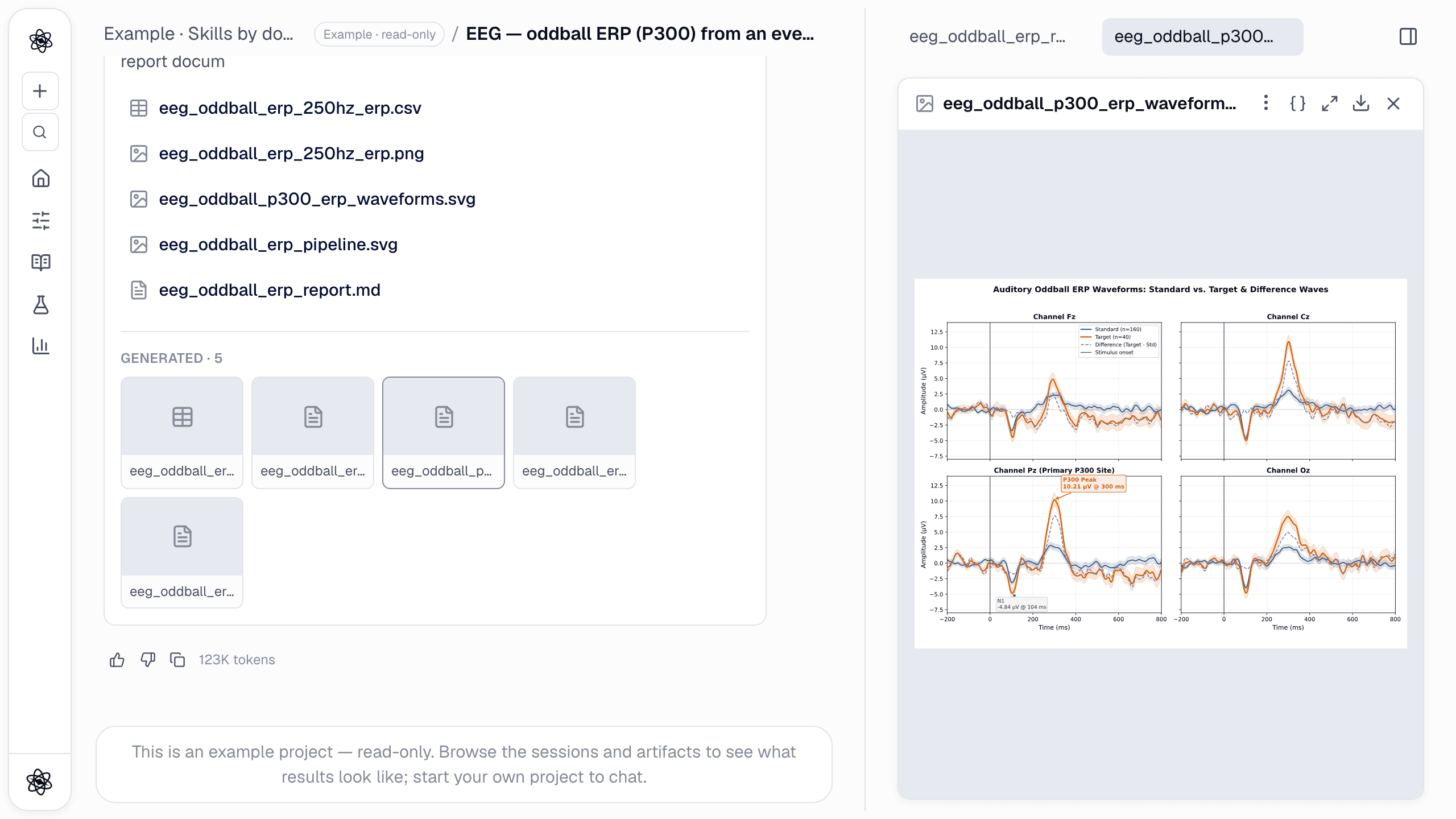
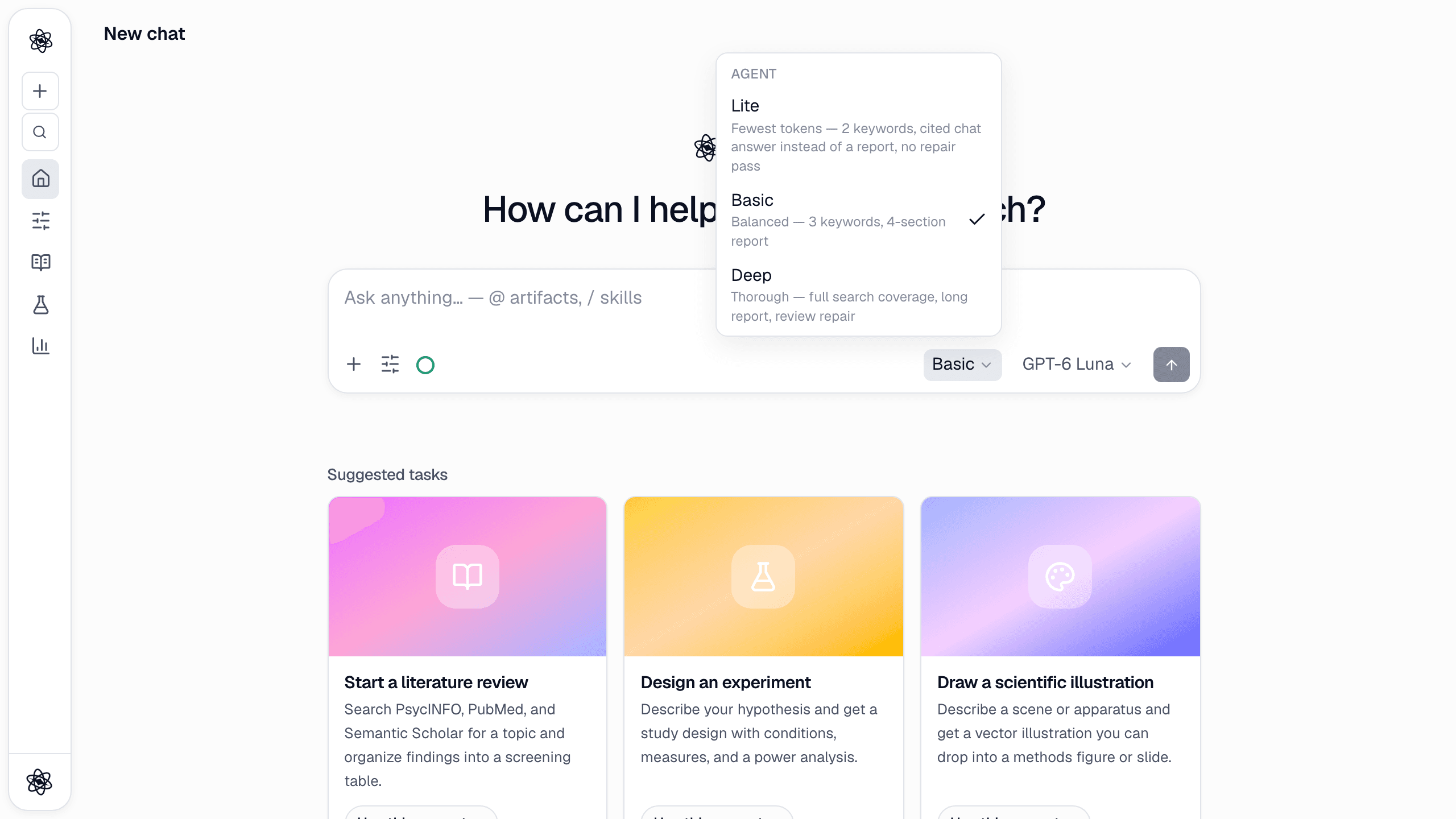
Research material rarely lives in one place. Papers sit in Zotero, lab notes in Notion, data and protocols in Google Drive, analysis code on GitHub. Until now, getting any of it into Neutropic meant downloading, uploading and copy-pasting — and getting results back out meant the same in reverse.
Connectors close that loop. Connect Google Drive, Notion, Zotero and GitHub once, and you can pull files, pages and papers straight into a chat, let the agent work with them under permissions you set tool by tool, and send the finished report or script back where your team already works.
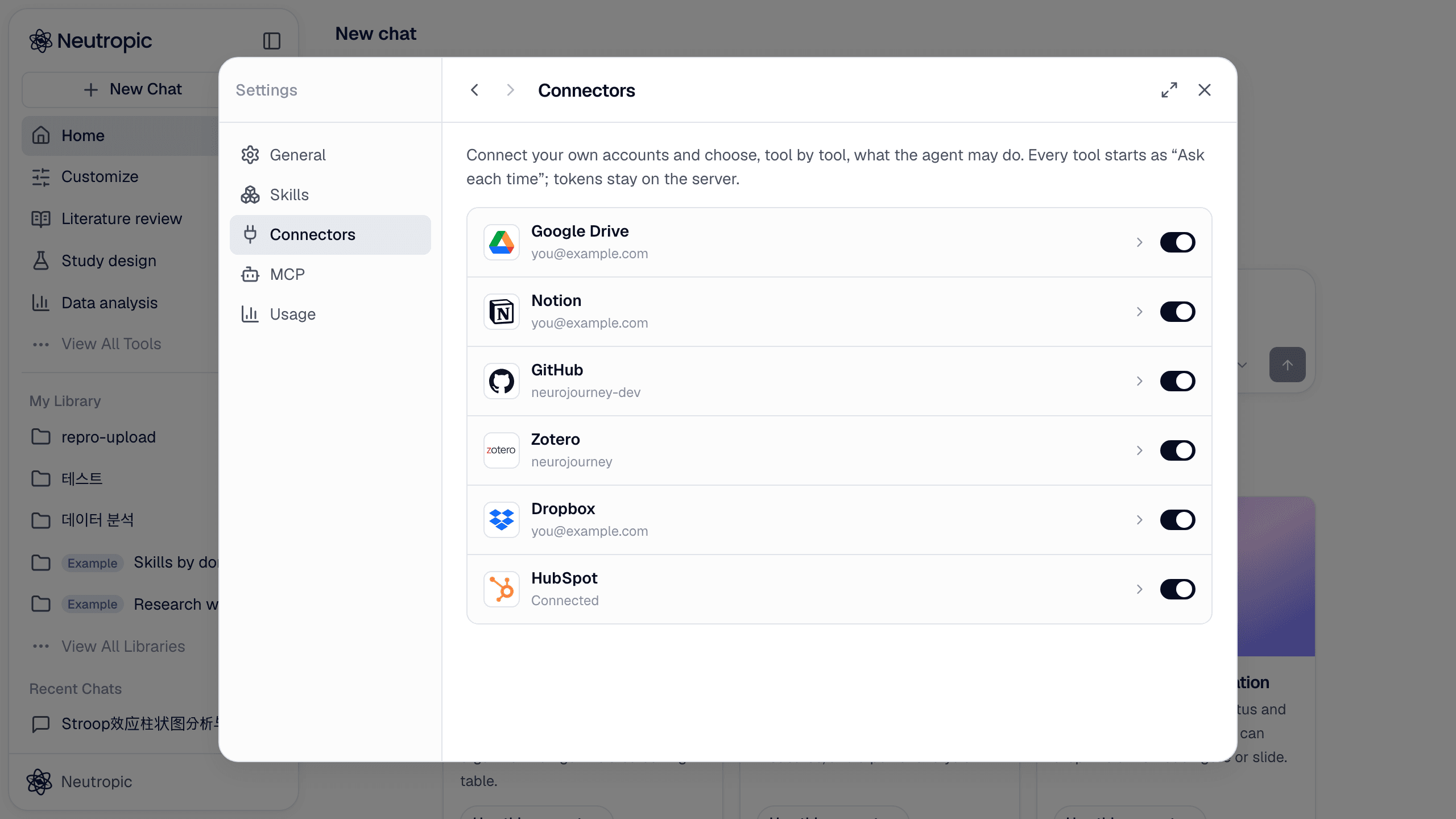
What each connector does
Google Drive (with Docs, Sheets and Slides)
- Import files from the composer: pick files or whole folders in Google's own file picker and they arrive in the chat as
@references. - Let the agent work in Drive: search and read files, read a Google Sheet range as a dataset, append a section to a Google Doc, or turn a Markdown report into a Slides deck.
- Export a report or manuscript into a Drive folder you choose.
Neutropic only asks for the drive.file scope: it sees the files and folders you pick (and the files it creates) — never the rest of your Drive.
Notion
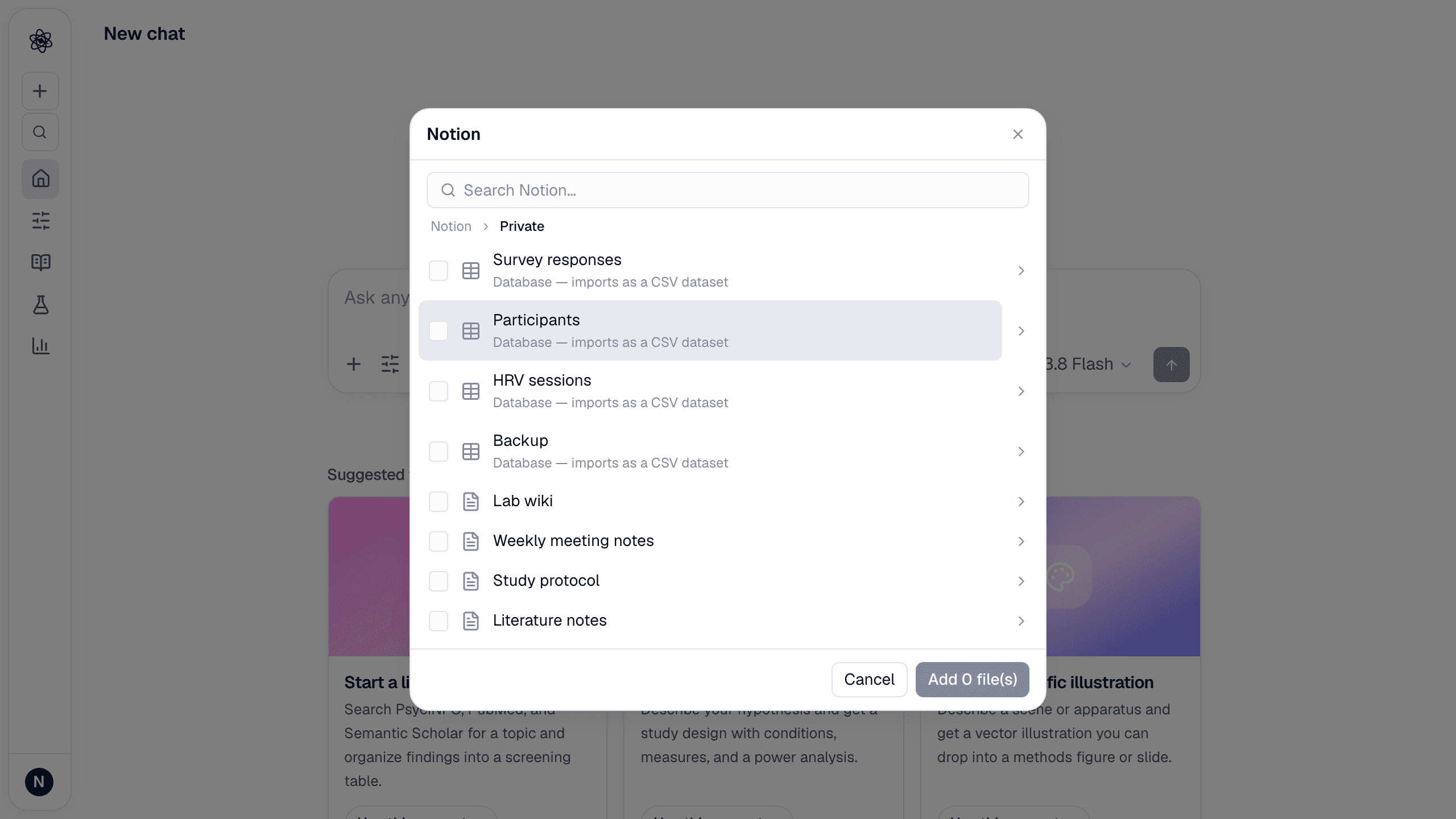
- Pick pages and databases from the composer, browsing your workspace the way Notion's sidebar does. Pages come in as Markdown; databases come in as a CSV dataset you can run statistics on.
- Write back: the agent can create and update pages, and a manuscript or report can be exported as a new page under the parent page you choose.
- You decide which pages Neutropic can see when you connect, and can change that selection later.
Zotero
- Import papers from My Library, group libraries and collections — the PDF when there is one, otherwise metadata and abstract.
- Get citations: APA/Chicago-style bibliographies, or BibTeX, RIS and CSL-JSON exports.
- Save sources back: after a literature review, the references the report cites ([n]) can be saved into a Zotero collection.
GitHub
- Import data files and scripts from your repositories: a CSV or XLSX becomes a dataset, a script or README becomes a readable file.
- Commit results: ask the agent to commit an analysis script, table or report to a repository path, on a new branch if you like. Reports and manuscripts can also be committed straight from the artifact panel.
Linear
- See where the work stands: ask what's assigned to you, what was opened this week, or how a project is going. The agent reads your real issues, projects and documents.
- Turn findings into tasks: ask for an issue with an analysis summary in the description, or a comment on an existing issue. The agent writes Markdown, and every change waits on an approval card first.
- Connecting is a Linear sign-in and nothing else; there's nothing to register on Linear's side. See the Linear docs for the full tool list.
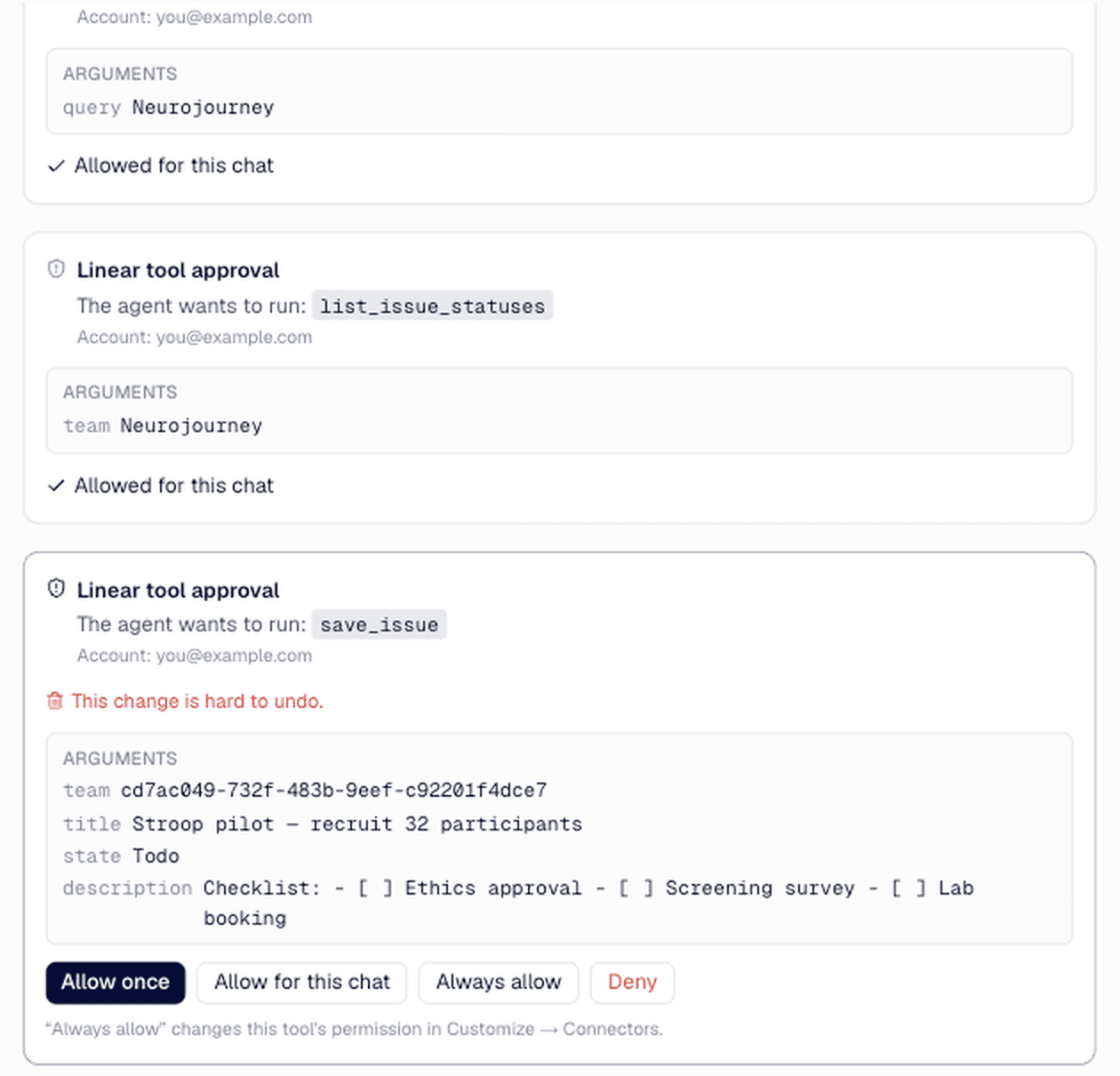
Create a Linear issue in the Lab team for the EEG preprocessing problem we found, with the summary from this analysis in the description.
Dropbox and HubSpot are also available in Customize → Connectors.
You decide what the agent may do, tool by tool
Every connector lists its tools, and every tool has three settings: Always allow, Ask each time or Block. Everything starts at Ask each time. When the agent wants to use a tool, an approval card appears in the chat, and nothing happens until you allow it.
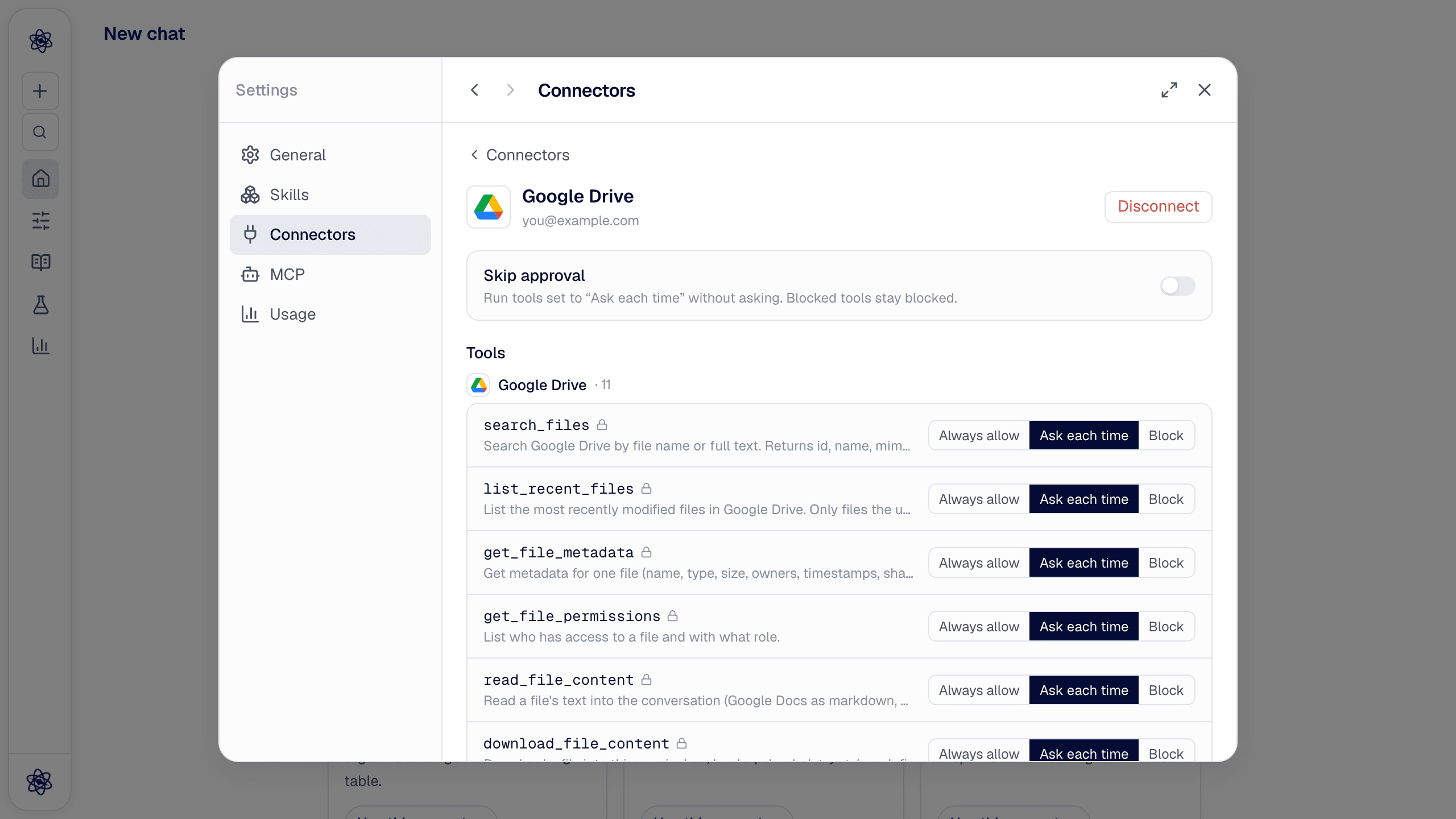
A sensible setup is to set the read tools you use often to Always allow and leave anything that writes, shares or deletes on Ask each time — or Block it. Skip approval runs every Ask tool without asking; blocked tools stay blocked either way.
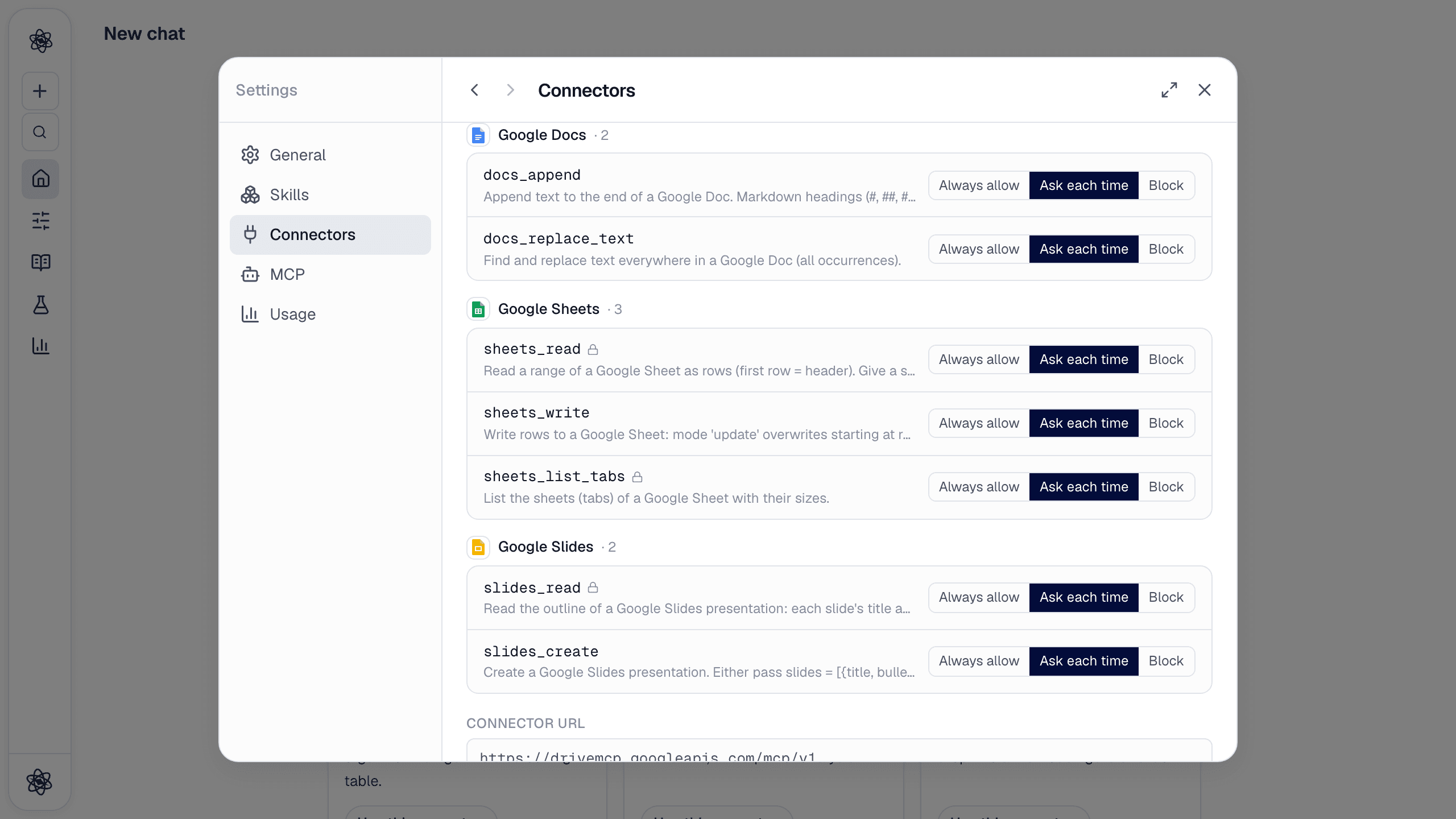
Google Drive's detail view groups the tools by app, so the Docs, Sheets and Slides tools that come with the same Google connection have their own settings.
Notion, GitHub and Linear expose a lot of tools, so by default the model only sees the essential ones. Expose all Standard tools in the detail view turns on the rest (it costs more prompt tokens per turn, so leave it off unless you need it).
Bring material into a chat
With a connector active, the composer's + menu gets a Connected apps group. Each app opens a picker that looks like the app itself: Notion's sidebar, your Zotero library tree, your GitHub repositories and folders, or Google's file picker for Drive.
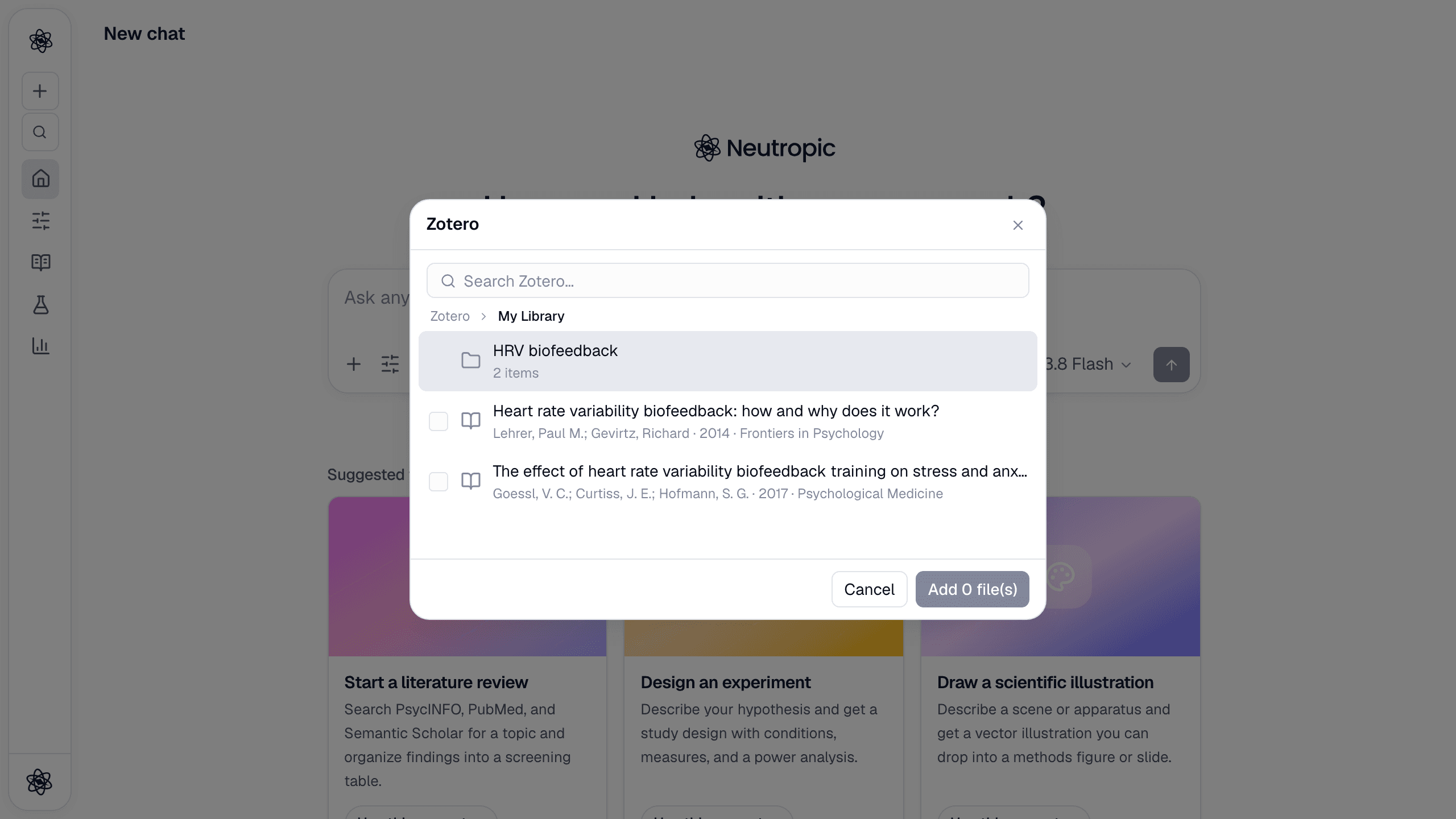
Tick what you need and it's imported into the session as uploads, attached to your message as @ references. From there it's ordinary session material — the agent can read it, cite it, search it and analyze it. Because each file keeps its name and origin, you always know which paper or page a sentence came from.
You can also just ask in plain words. The agent calls the connector's tools (with your approval where needed):
Find the HRV papers in my Zotero and import the three most recent PDFs.
Import my "Pilot study" database from Notion and describe it.
Load data/trials.csv from my lab/hrv-analysis repo and run the same preprocessing as scripts/clean.R.
Send results out with Export to…
When a report or manuscript is open in the artifact panel, the Download menu has Markdown, DOCX, PDF and LaTeX — and below them a Connected apps group. Hover over it and pick a destination.
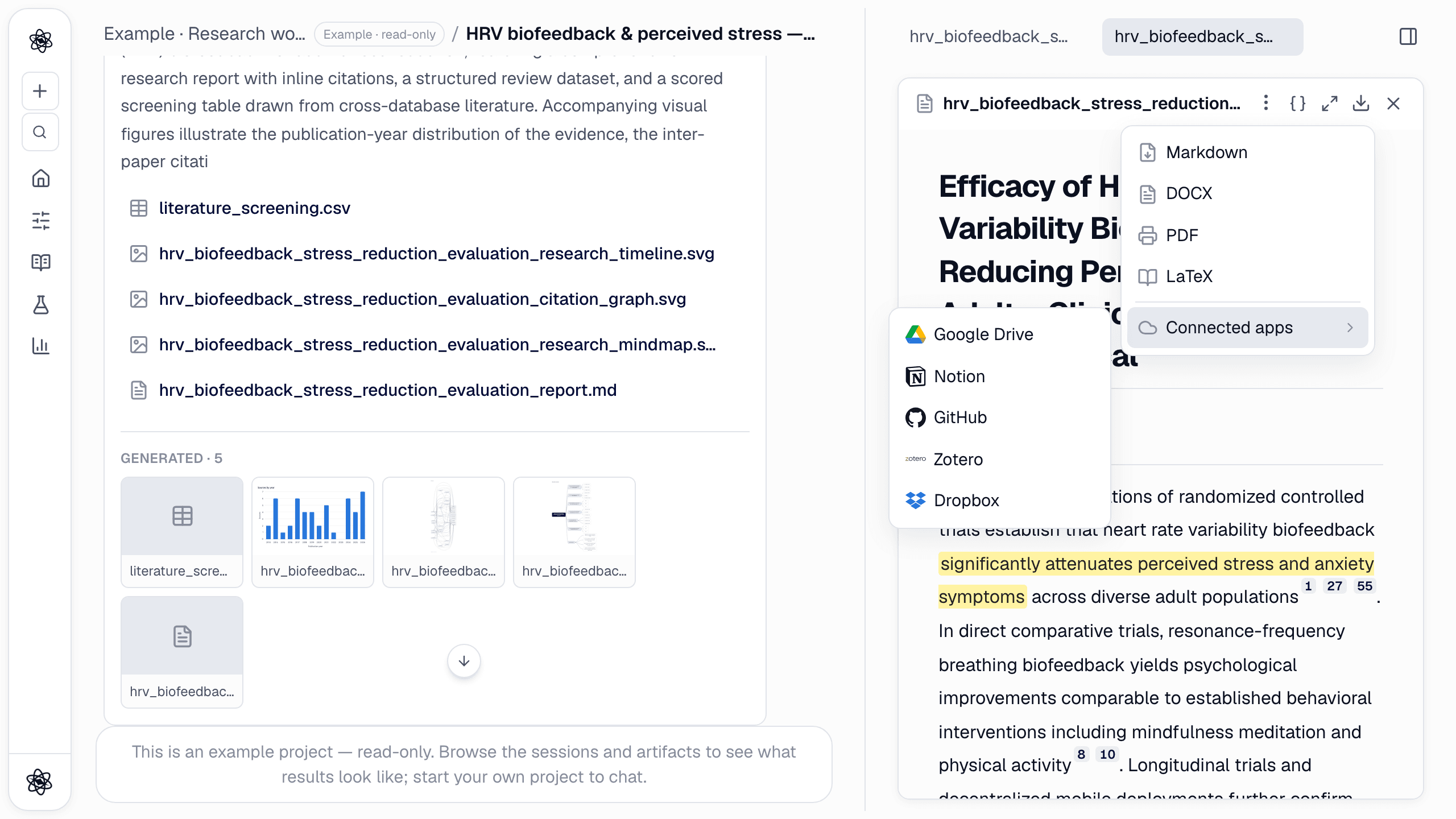
- Google Drive and Dropbox ask for a folder; Notion asks for a parent page (without one, it makes a private draft page).
- GitHub opens a small dialog for the repository, path, branch and commit message, then commits the file.
- Zotero doesn't store the document itself. It saves the references the document cites into your library, so the sources behind a review end up where you manage citations.
A toast confirms the export and links to the new page, file or commit.
An end-to-end example
Here's what a full loop can look like, from papers to shared results:
- Pull papers from Zotero. Open + → Connected apps → Zotero, go into your "HRV biofeedback" collection and tick the papers you want. Their PDFs arrive in the chat as
@references. - Run a literature review. Ask for a review that starts from the attached papers and extends them with a database search. The report backs its claims with numbered sources you can open.
- Save the sources back. From the report's Download → Connected apps → Zotero, pick a collection and the references the report cites are saved there.
- Share the report in Notion. Download → Connected apps → Notion, pick your lab wiki page, and the report becomes a Notion page your team can comment on.
- Commit the analysis code to GitHub. If you went on to analyze data in the same chat, ask for it in plain words, and approve the commit when the card appears:
Commit the analysis script and the results table to lab/hrv-analysis under neutropic/ on a new branch.
You don't copy and paste anything along the way, and every step leaves a trace: the imported files in the session, the numbered sources in the report, the page in Notion, and the commit in GitHub.
Security and disconnecting
- Tokens stay on the server, encrypted. They are only used when a turn calls that connector's tool, or when you click import or export yourself.
- Only what you share. Drive sees only the files you pick, and Notion only the pages you share. Zotero and GitHub use the permissions you approve on their own authorization pages.
- Content is data, not instructions. Text that comes back from a connector is treated as material to work with, never as commands for the agent.
- Disconnect any time from the connector's detail view. The stored token is deleted (for Notion it is revoked as well). Files you already imported stay in your project like any other upload.
Setup details for each app are in the docs: Google Drive, Notion, Zotero and GitHub.