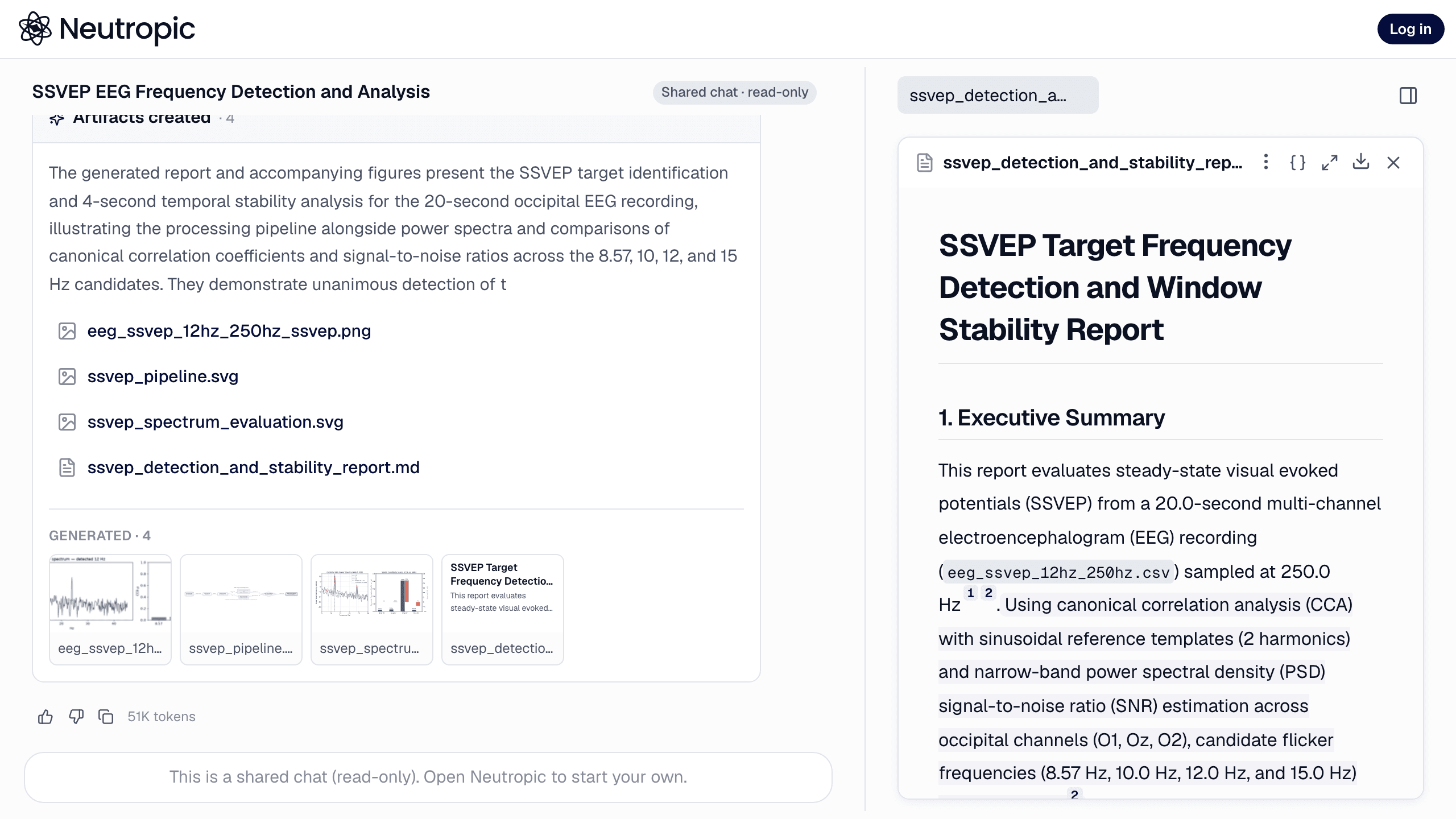
Most research figures do not end their life in a manuscript. The same chart goes onto a conference poster, into a lab-meeting deck, into a course slide and, more and more often, into a social post about the paper. For a lot of researchers, the place where that last mile happens is Canva — and until now it meant downloading a PNG from Neutropic, uploading it to Canva, and doing the reverse whenever a poster needed a second look.
The Canva connector removes that round trip in both directions. Send a figure or a whole slide deck from a chat straight into your Canva account, pull your Canva posters and presentations into a chat as files the agent can read, and let the agent search, export, comment on and create designs under permissions you set tool by tool. Canva has reviewed and approved the integration, so it works with any Canva account.
From a chat into Canva
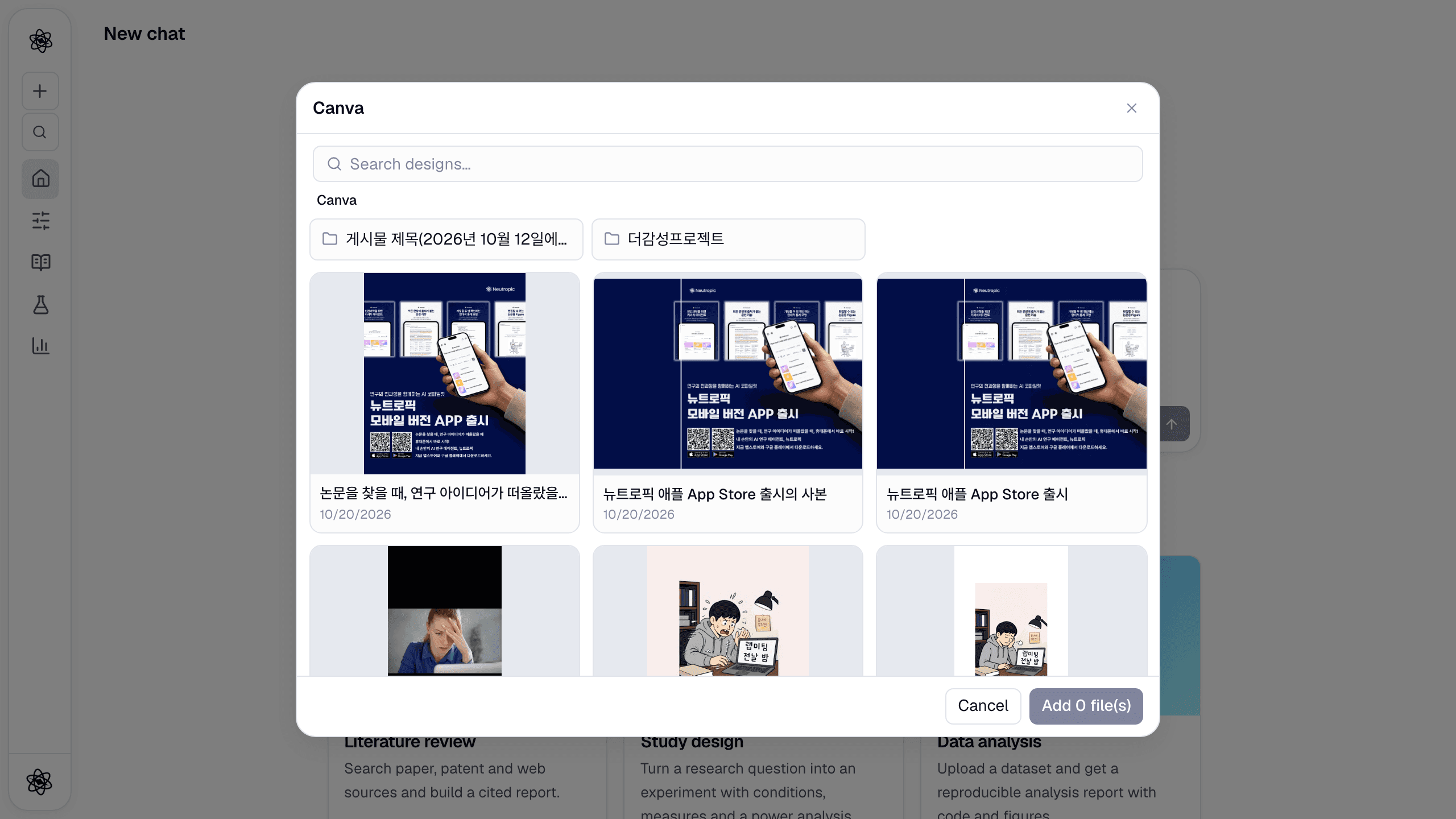
A figure becomes a Canva design
Every figure Neutropic draws — a bar chart with confidence intervals, a protocol flow, a scientific illustration — has a Download menu, and with Canva connected that menu gets a Canva entry. Click it and the figure is uploaded to your Canva assets and placed into a new design, ready for a poster or a post. Vector figures are rendered to PNG on the way, so what lands in Canva is exactly what you saw in the chat.
A deck becomes a Canva presentation
Decks made with the Slides skill have Export to… → Canva. The deck is sent as PPTX and Canva imports it as a new presentation, with editable text boxes and the speaker notes, so your team can restyle it in the templates it already uses.
From Canva into a chat
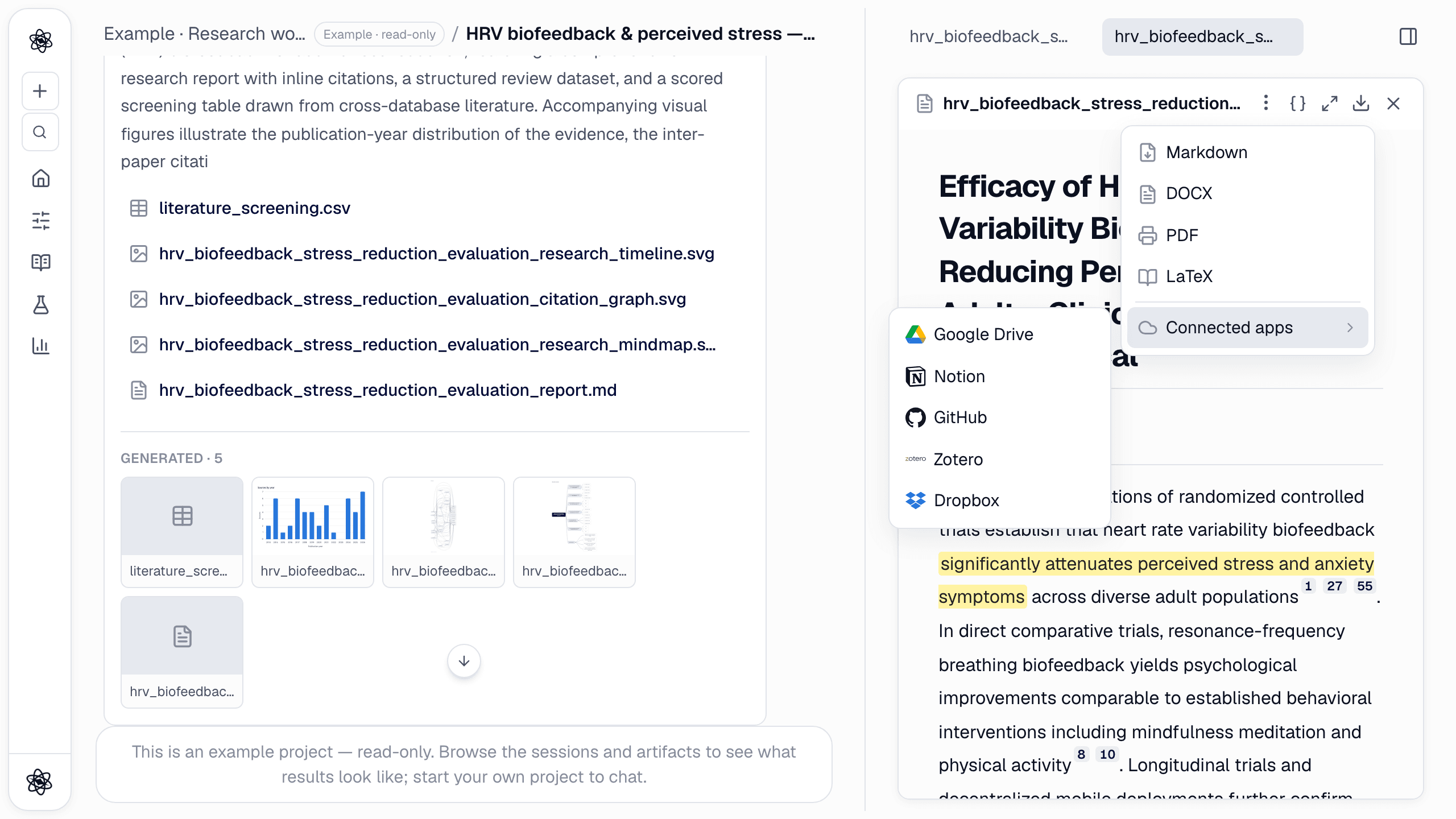
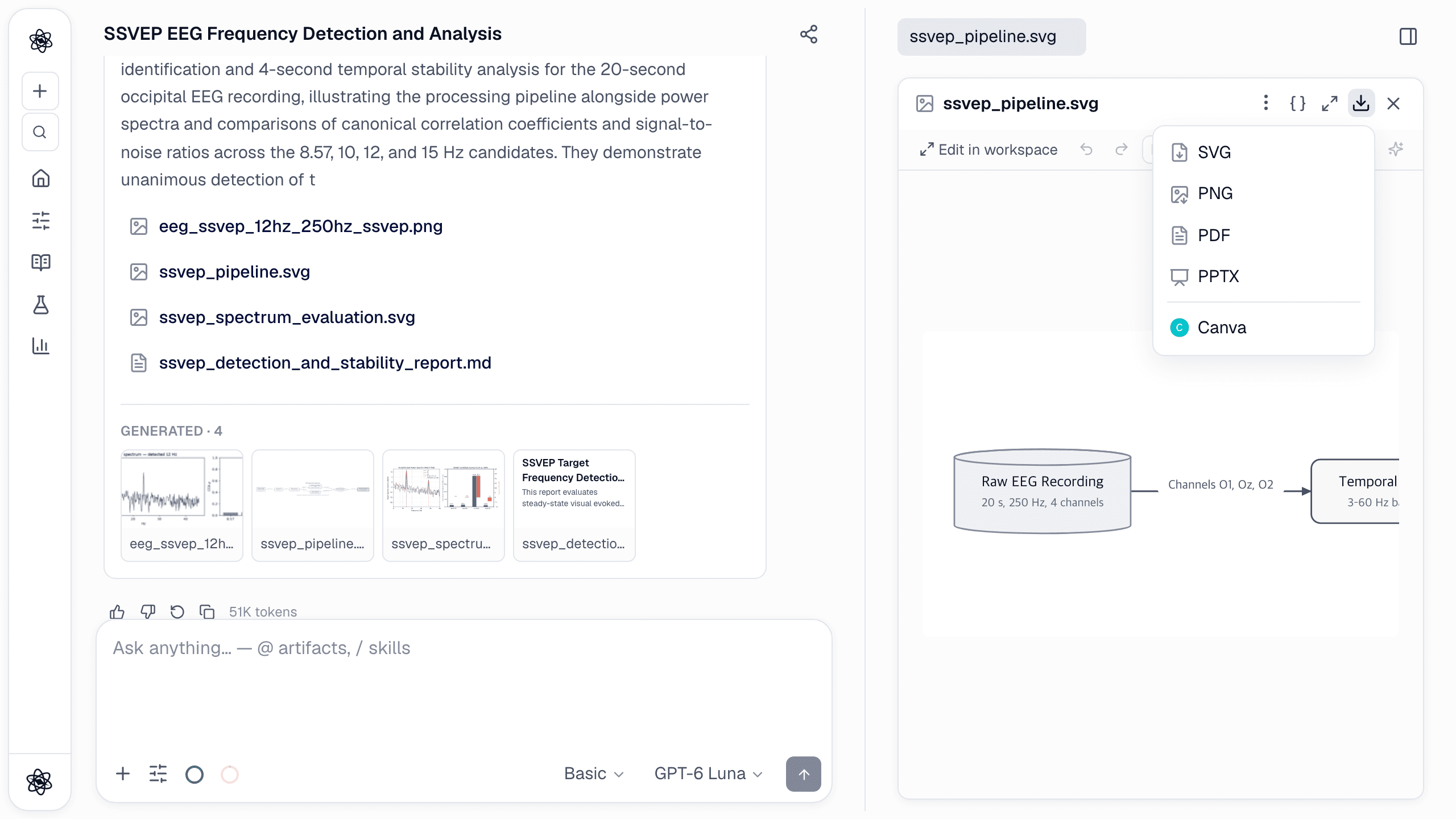
With Canva connected, the composer's + → Connected apps menu gets a Canva entry. It opens a picker that looks like Canva itself: your folders, and your designs as thumbnail cards. Tick the ones you need — a single-page design such as a poster arrives as a PNG, a multi-page one such as a presentation or a document arrives as one PDF — and they are attached to your message as @ references.
From there they are ordinary session material. Ask for a Report review of the poster's text, check that the numbers on the slides still match the analysis in the same project, or extract the text of a design to reuse it in a manuscript.
@lab_poster.png Check the Methods panel against the analysis report in this project and list every number that differs.
Let the agent work in Canva
The agent talks to Canva through Canva's official MCP server — the same tools Canva offers to AI assistants — so what it can do tracks what Canva ships. About 50 tools are available; by default the agent sees the 14 it needs for research work:
- Find and read designs:
search-designs,get-design,get-design-content,list-folder-items. - Export into the chat:
export_design_to_sessionexports a design as PDF, PNG, JPG or PPTX and attaches the file to the session. - Create:
create_design_and_waitmakes a new presentation, document or custom-size design from a short brief and returns its link (Canva takes about a minute);generate-designlets Canva propose candidates and you pick one. - Assets and comments:
upload-asset-from-url,comment-on-design,list-comments.
Find my Canva design "Stroop pilot — lab meeting", export it as PDF and attach it here.
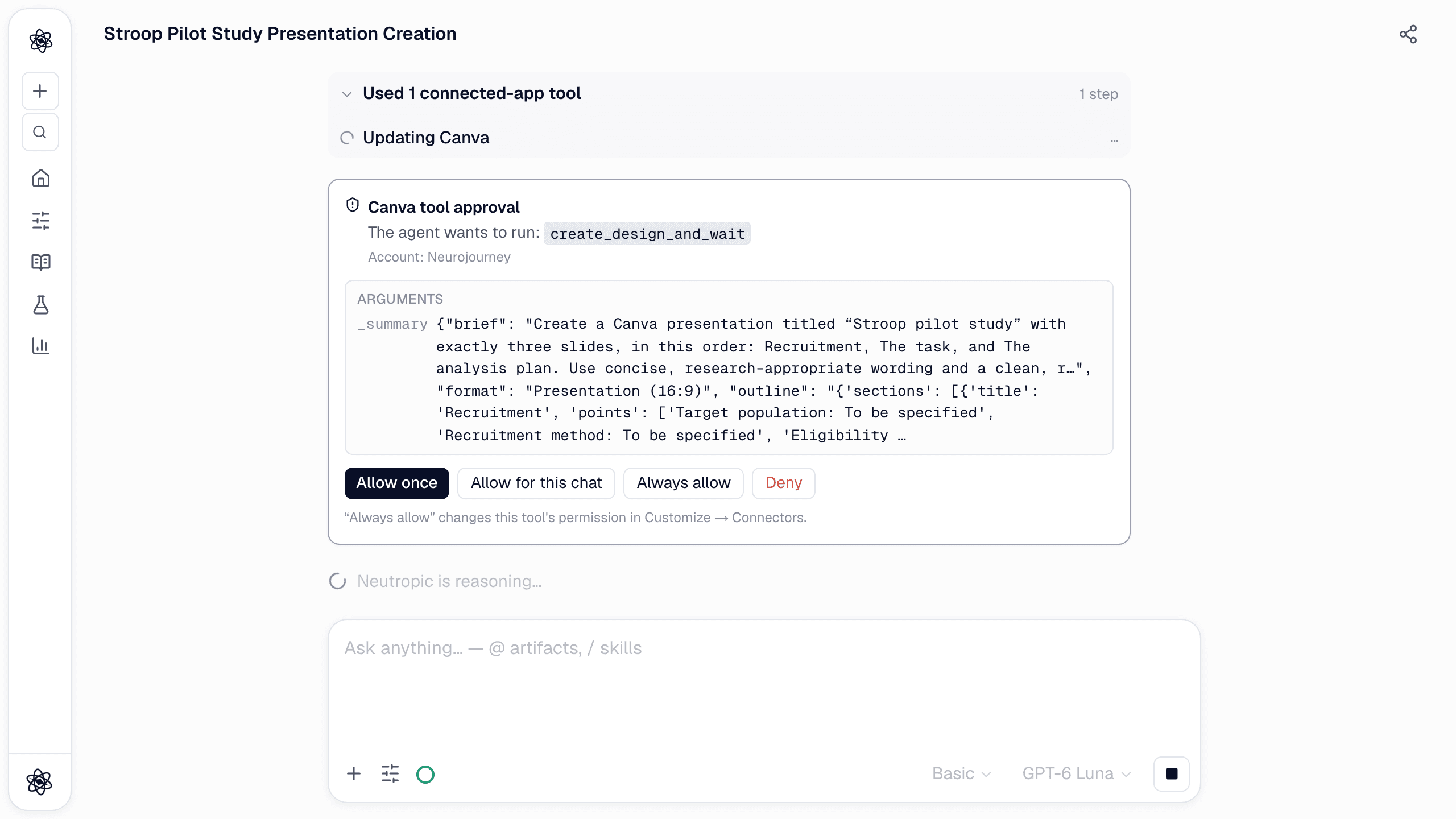
Create a Canva presentation titled "Stroop pilot study" with slides on recruitment, the task and the analysis plan, using the design-plan report in this project.
You decide what the agent may do
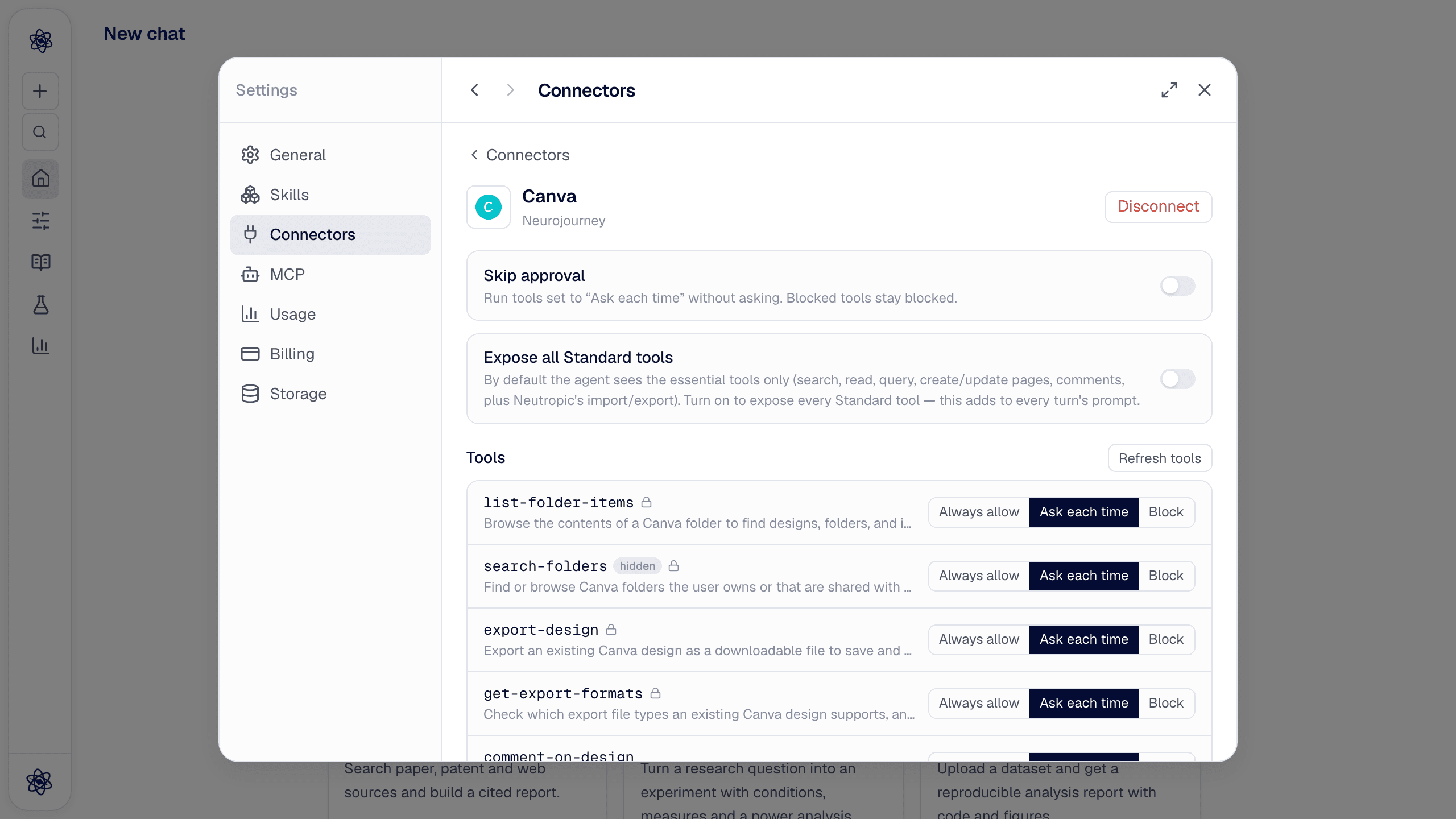
Like every connector, Canva lists its tools in Customize → Connectors, and each tool is Always allow, Ask each time or Block. Everything starts on Ask each time: when the agent wants to use a tool, an approval card appears in the chat and nothing happens until you allow it.
Tools that reach beyond a single design are blocked and hidden by default — brand templates and brand kits, autofill, moving and creating folders, copying, merging and resizing designs, AI image generation — and you can unblock any of them. Expose all Standard tools shows the rest of the catalogue (page and presenter-note tools, thumbnails, edits) at the cost of more prompt tokens per turn, so leave it off unless you need it.
Connecting
Turn on Canva in Customize → Connectors, sign in to Canva and approve access. Any Canva account works — personal, Pro or a team account. Tokens are stored encrypted on the server and refreshed automatically; Disconnect deletes them, and the Canva docs list every tool.
If you have been moving figures between Neutropic and Canva by hand, connect it once and try the two directions that save the most time: Download → Canva on your next figure, and the Canva picker on the next poster you want checked.