Most of us don't do research in one app. You draft in Claude, ask ChatGPT a quick question, write analysis code in Cursor or Claude Code — and then copy things back and forth to Neutropic when you need real sources or a proper statistical test.
Starting today you don't have to. Neutropic is now an MCP server. MCP (Model Context Protocol) is the open standard AI apps use to call outside tools. Add Neutropic once, and the app you already have open can use Neutropic's research tools directly — literature search, citation checks, statistics with assumption checks, power analysis, and the full research skills.
What your AI app can do with Neutropic
- Search real literature — PubMed and Crossref results with DOIs, not papers the model half-remembers.
- Check citations — confirm that a DOI or a reference title really exists and matches, up to 10 at a time.
- Run statistics — compare groups with a test chosen from the design and an assumption check, and get effect sizes, confidence intervals and an APA sentence.
- Plan sample size — power analysis from an effect size.
- Run research skills in the background — literature review, manuscript writing, Peer review, hypothesis design, data and EEG analysis. The app starts the job, checks on it, and reads the report when it's done.
- Work with your projects — browse projects, read reports, manuscripts and tables, upload a data file, or save a note to project memory.
Apps that support MCP prompts also show shortcuts for literature review, statistics, peer review, hypothesis design and reference checks.
Why connect instead of switching apps
Your answers stay grounded. General-purpose chatbots are good at writing and bad at citing. With Neutropic connected, the sources in your Claude or ChatGPT conversation come from a real database search, and a reference list can be checked before it goes into a draft.
You stay where you work. If you're refactoring an analysis script in Cursor, you can ask "did reaction time differ between the two conditions?" and get an assumption-checked test without leaving the editor.
Nothing gets lost. Everything the app runs is saved to your Neutropic account. Research jobs appear in Recent Chats with a via Claude or via ChatGPT badge, so you can open the full report with its sources and keep going in Neutropic. Every tool reply also includes a link back.
You decide what the app can touch. Each connection gets only the permissions you grant, and can be limited to a single project.
Step 1: Open Settings → MCP
In Neutropic, open Customize → MCP. You'll find the server URL to paste into your AI app, and a list of the apps and access keys connected to your account.
https://api2.neutropic.io/mcp
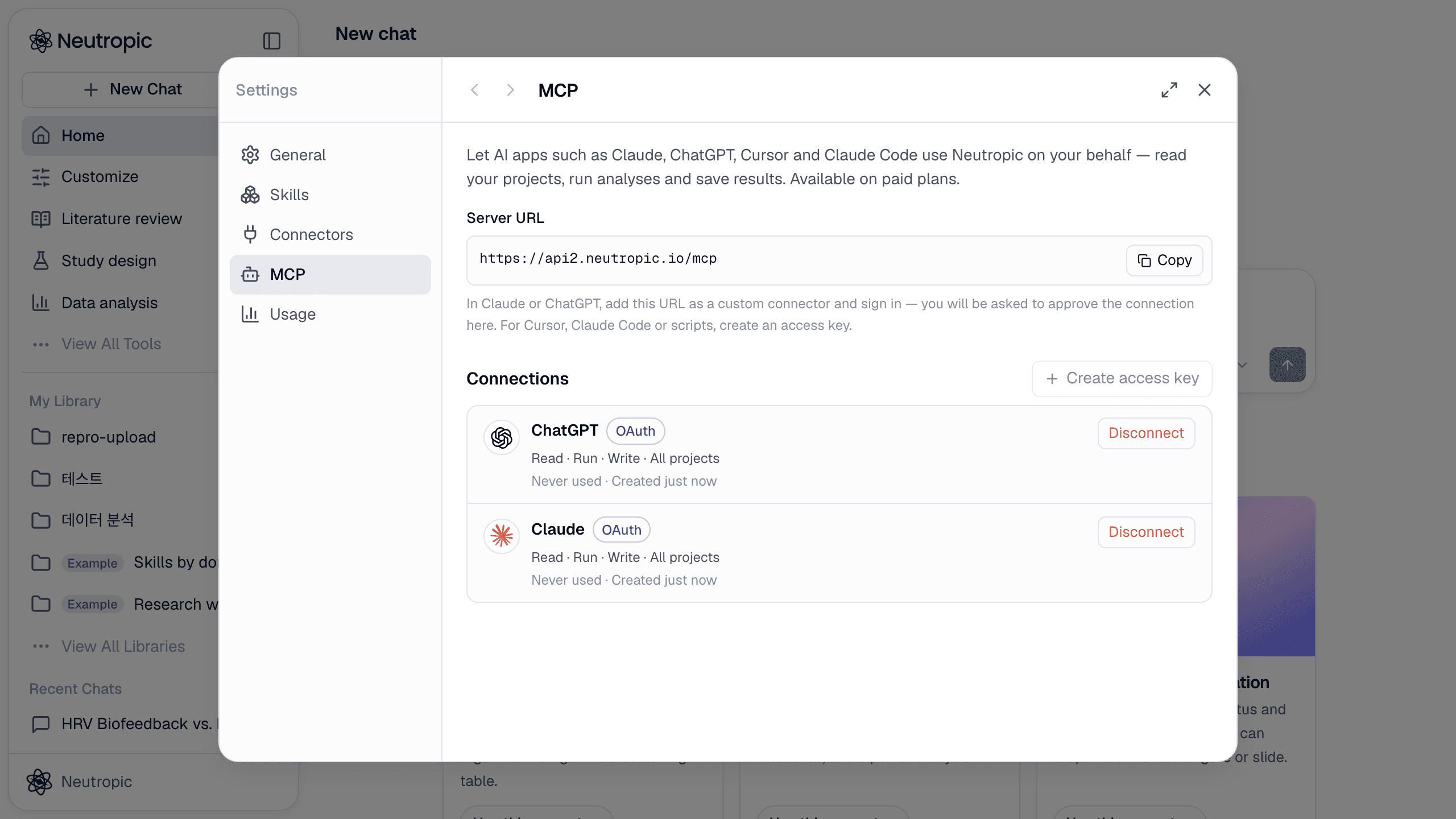
There are two ways to connect:
- Sign in (OAuth) — for Claude and ChatGPT. Add the URL in the app and approve it in Neutropic. No key to copy.
- Access key — for Claude Code, Cursor and your own scripts. Create a key in Neutropic and put it in the tool's config. (Claude Code also supports signing in.)
Step 2a: Claude and ChatGPT — add the URL and approve
In Claude (web, desktop or mobile), go to Settings → Connectors → Add custom connector, name it Neutropic, paste the server URL and click Connect. In ChatGPT, turn on Developer mode under Settings → Apps & Connectors → Advanced settings, then Create a connector with the same URL and OAuth as the authentication.
Either way, a Neutropic window opens. Sign in if needed, choose what the app may do, and approve.
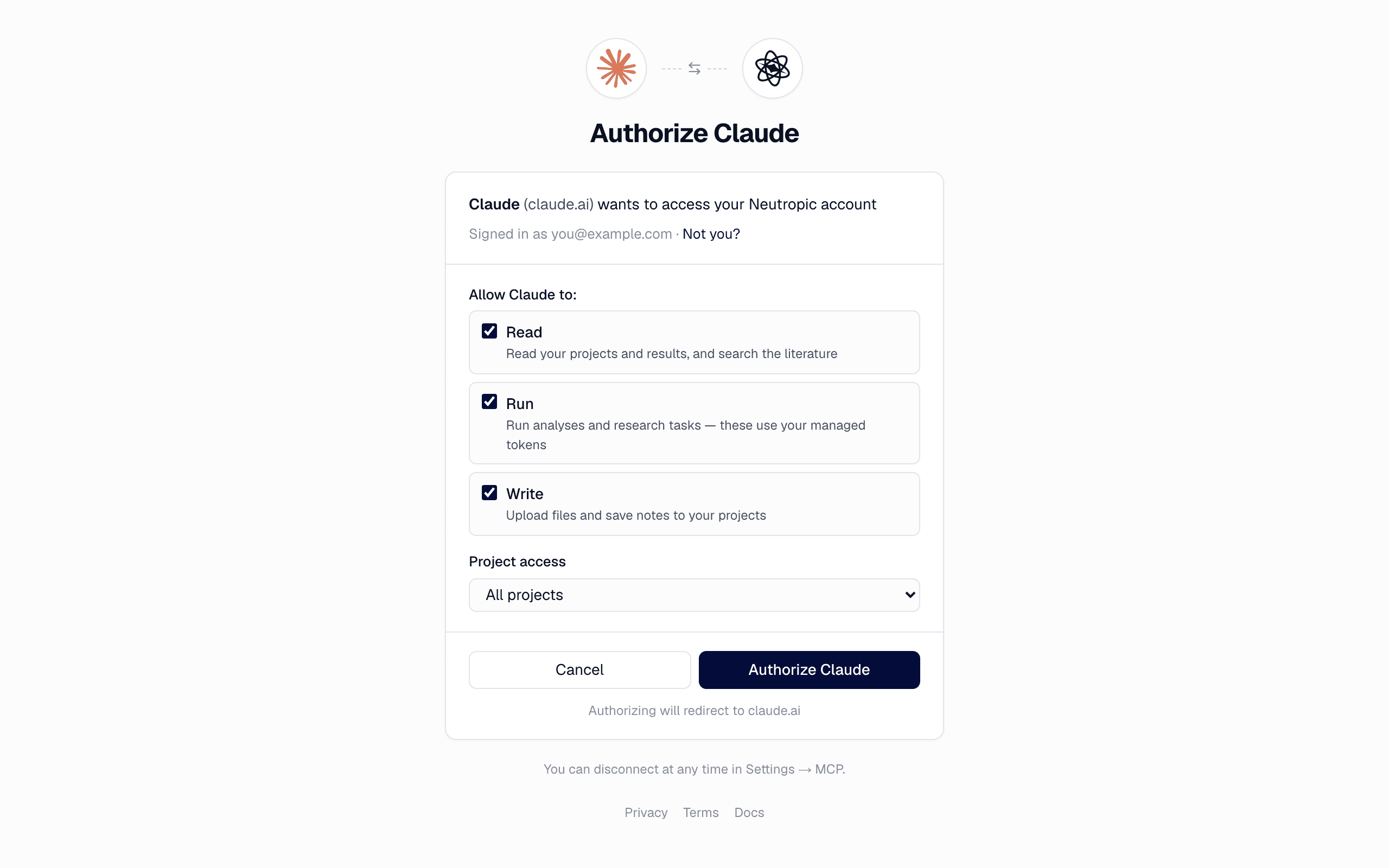
- Read — read your projects and results, and search literature.
- Run — run analyses and research jobs. These use your managed tokens, just like a chat in Neutropic.
- Write — upload files to a project and save notes.
Step 2b: Claude Code and Cursor — use an access key
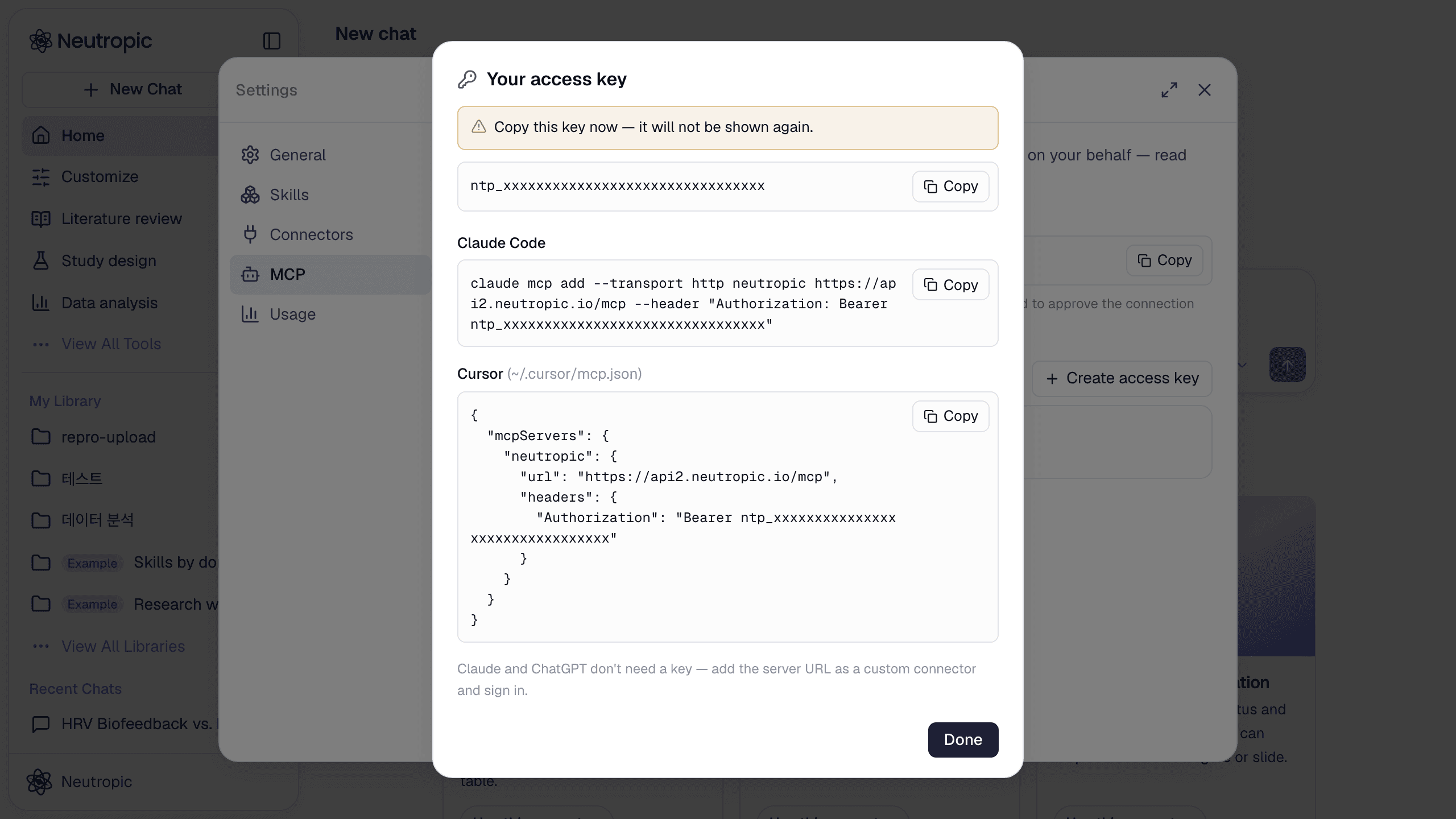
In Claude Code you can sign in without a key: run the command below, then open /mcp in Claude Code, pick neutropic and choose Authenticate.
claude mcp add --transport http neutropic https://api2.neutropic.io/mcp
For Cursor, servers or CI, create an access key instead. In Settings → MCP, click Create access key and set a name, permissions, a project scope and an expiry.
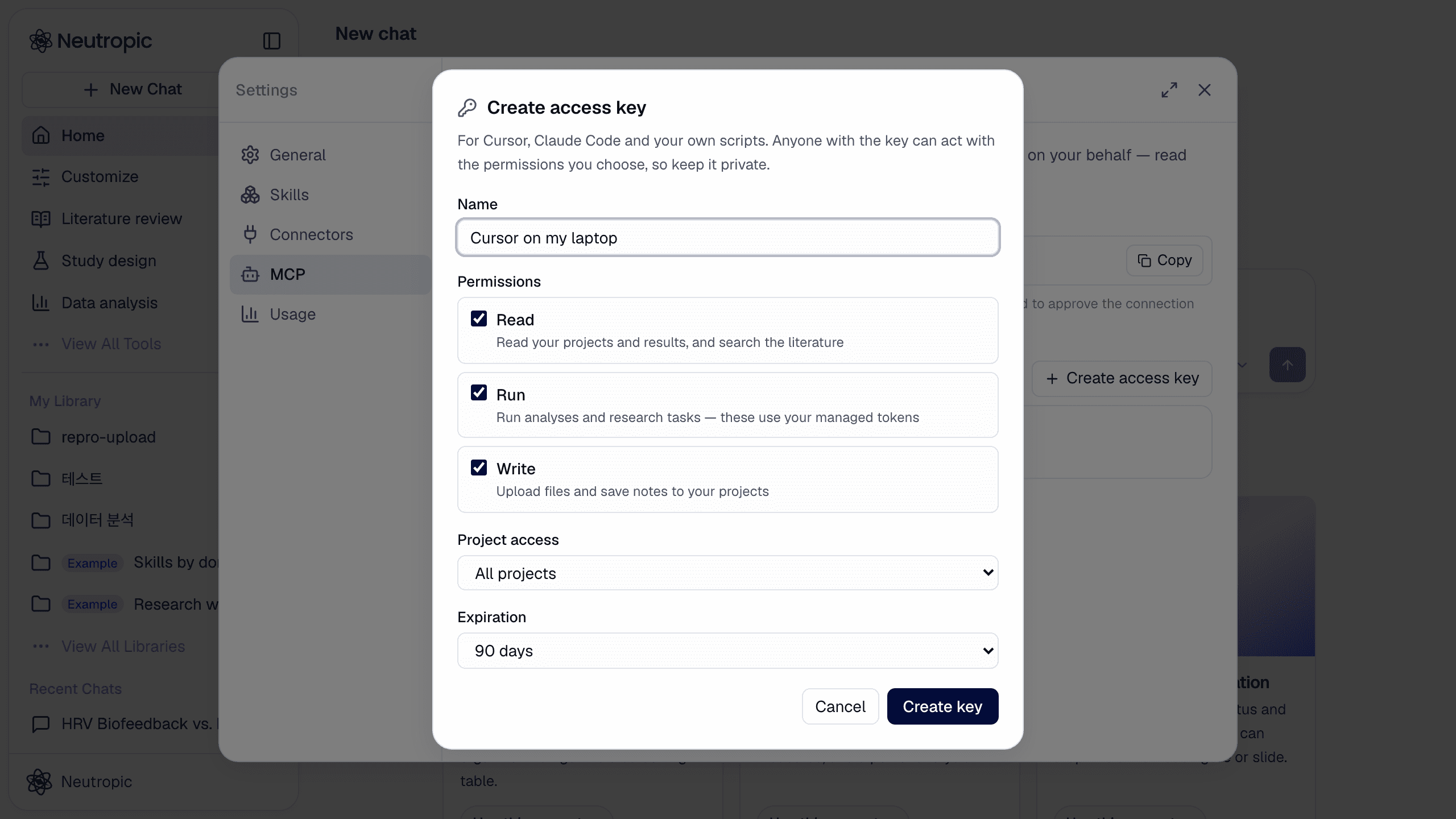
The key is shown once, together with a ready-to-paste Claude Code command and a Cursor mcp.json snippet with the key already filled in.
Any other MCP client that supports the Streamable HTTP transport works too — point it at the server URL and either sign in with OAuth or send Authorization: Bearer <access key>.
Step 3: Just ask
Once Neutropic is on, you don't need to name tools. Ask the way you normally would:
Use Neutropic to find RCTs on HRV biofeedback for anxiety since 2020.
Check that every reference in this list actually exists.
Here's my CSV — did reaction time differ between the two conditions?
How many participants do I need for d = 0.4 at 80% power?
Run a deep literature review on neurofeedback for ADHD with Neutropic.
Quick tools answer in seconds. Research skills run in the background and can take a few minutes — the app checks back on its own and reads the report when it's ready. Open the same job in Neutropic any time to see the full report, every source, and to ask follow-up questions.
Plans and disconnecting
Using Neutropic from an AI app requires a paid plan. You can connect on any plan, but the app's requests are declined until you upgrade. Work done through MCP uses managed tokens the same way chats in Neutropic do.
To cut off an app, click Disconnect next to it in Settings → MCP — access stops immediately. Removing the connector inside Claude or ChatGPT doesn't always revoke it on our side, so disconnect it here too.
The full setup guide for each app is in the MCP docs.